These guides will help you set up older TPG modems.
Don't have a TPG modem? Check out BYO Modem Setup Guides.
Choose your modem
| Picture | Modem |
|---|---|
|
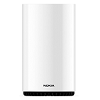
Nokia FastMile 3.2 5G Modem |
|
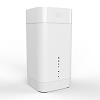
Sagemcom 5866 5G Modem |
|
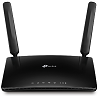
TP-Link MR600 Modem |
|
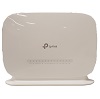
TP-Link VR1600v Modem |
|
Modem not listed here? See Current TPG modems. |
Nokia FastMile 3.2 5G Modem
More guides
Sagemcom 5866 5G Modem
More guides
TP-Link MR600 Modem
TP-Link VR1600v Modem
Choose which type of internet you have - this will be mentioned in emails from us about your order:
- Set up nbn FTTP
- Set up nbn FTTC
- Set up nbn FTTB/N
- Set up nbn HFC
- Set up nbn Wireless
- Set up TPG FTTB
More guides
- Change your Wi-Fi password
- Change your modem password
- Factory reset your modem
- Note: WPS is turned off by default. It can be turned on at http://192.168.1.1. Just log in and hit Advanced > Wireless > Advanced Settings, then tick Enable for WPS and Save.
This article will provide advice and resources for parents who wish to restrict the content accessed by children online. As the digital world continues to evolve, the challenges for parents evolve with it. To help keep your children safe, we’ve created this guide to highlight some of the challenges your children may face online.
For more information about keeping your child safe online, please visit eSafety.gov.au.
Select one of the links below to jump to a query:
- Accessing age-appropriate material
- Parental Control features in modems (and why they're no longer recommended)
- Unwanted contact from strangers
- Maintaining privacy
- Cyberbullying
- In-app charges
- Computer viruses
Accessing age-appropriate material
Making sure your child only has access to age-appropriate material online can be a difficult task. It’s a good idea to chat with your children and encourage them to come to you if they see imagery or content that worries or upsets them.
If you have children of different ages, it’s best to remind older children that certain websites and apps may not be suitable for their younger siblings.
You might consider using online parental controls, monitoring apps and family friendly filters. There are apps that track the websites that your child visits and they can also block dedicated sites that you consider inappropriate. The Communications Alliance has great advice for family friendly filters.
If any apps or filters require the MAC Address of your child's device, these guides will help you find it:
- Find MAC Address on Windows
- Find MAC Address on macOS
- Find MAC Address on Android OS
- Find MAC Address on iPhone or iPad: Turn off Private Wi-Fi (if applicable), then open Settings and go to General > Settings > About. The "Wi-Fi address" is the MAC address.
Parental Control features in modems (and why they're no longer recommended)
In the past, parents may have used Parental Control features in their modem settings to block access to certain websites and/or keywords. This approach is no longer recommended as it's ineffective due to these reasons:
- Parental Controls will not work if the child's device is not accessing the internet directly through your modem via Ethernet or Wi-Fi. This includes mobile data, mesh Wi-Fi networks and public Wi-Fi.
- Parental Controls may not work as expected if the child's device which use a VPN encrypted connection or other security software, or if the child's device already has content from the blacklisted websites in its browsing cache.
- Parental Controls are not effective on websites using HTTPS, a type of encryption that is now used by most websites.
Unwanted contact from strangers
Social media apps can provide the ability for your children to network and to keep in touch with their peers. But they also attract unwanted contact from strangers.
If your child is contacted by a stranger, encourage them to come to you immediately. They shouldn’t respond to the stranger no matter how tempting it might appear.
Maintaining privacy
Sharing of private information online can be necessary but it’s important that your children are aware of when to share and when not to share private information.
It’s a good idea to chat with your children to explain the importance of keeping personal information off the internet. Set boundaries and rules, especially for younger children as their online reputation can follow them through life.
Cyberbullying
No longer is bullying confined to the playground. With the advent of the internet, a child could be bullied from whenever they have access to the internet. Cyberbullies may act anonymously and can inflict significant emotional trauma on a child in their bedroom – a place that should be the safest of all.
It’s important to talk to your children about cyberbullying and to make them aware of how to identify cyberbullying when it occurs. Tell your child that they should never respond to a cyberbully. Encourage your child to come to you immediately if they feel that they’ve been targeted.
In-app charges
Many apps, particularly free online games, generate revenue through what’s known as in-app purchases. Sometimes you may not even know that a particular action in a game involves money.
It’s best to ensure that your debit/credit card details aren’t saved on the device so that you aren’t charged if your child inadvertently makes an in-app purchase.
Computer viruses
Computer viruses and malware can be spread through what it seems like an innocent email or attachment.
Teach your children to be wary of emails that are unfamiliar or that they’re not expecting. Some emails use popular logos and brand names – be cautious of opening and downloading anything that doesn’t seem completely legitimate.
Always use virus protection software on all devices connected to your home network.
@keyframes loadingindicator {
0%
Before calling TPG, we recommend checking if there is an NBN network outage affecting your area.
Select timeframe
| nternet | |
|---|---|
| NBN | |
| Current | |
| Last 24 Hours | |
| Planned Maintenance | |
| FTTB | |
| Current | |
| Last 24 Hours | |
| Planned Maintenance | |
| ADSL | |
| Current | |
| Last 24 Hours | |
| Planned Maintenance | |
| Off-net ADSL | |
| Current | |
| Last 24 Hours | |
| Planned Maintenance | |
| Home Wireless / 4G / 5G | |
| Check mobile data and fixed wireless status | |
| Mobile | |
|---|---|
| Mobile | |
| Current | |
| Last 24 Hours | |
| Planned Maintenance | |
| Mobile Broadband | |
| Current | |
| Last 24 Hours | |
| Planned Maintenance | |
| Phone | |
|---|---|
| Home Phone | |
| Current | |
| Last 24 Hours | |
| Planned Maintenance | |
| VoIP | |
| Current | |
| Last 24 Hours | |
| Planned Maintenance | |
| Current | |
| Last 24 Hours | |
| Planned Maintenance | |
| Others | |
|---|---|
| Web Site Hosting | |
| Current | |
| Last 24 Hours | |
| Planned Maintenance | |
| External Links | |
| Current | |
| Last 24 Hours | |
| Planned Maintenance | |
| Games | |
| Current | |
| Last 24 Hours | |
| Planned Maintenance | |
| Other | |
| Current | |
| Last 24 Hours | |
| Planned Maintenance | |
Internet
| Service | Current | Last 24 Hours | Planned Maintenance |
|---|---|---|---|
| NBN | |||
| FTTB | |||
| ADSL | |||
| Off-Net ADSL |
Mobile
| Service | Current | Last 24 Hours | Planned Maintenance |
|---|---|---|---|
| Mobile | |||
| Mobile Broadband |
Phone
| Service | Current | Last 24 Hours | Planned Maintenance |
|---|---|---|---|
| Home Phone | |||
| VOIP |
| Service | Current | Last 24 Hours | Planned Maintenance |
|---|---|---|---|
Others
| Service | Current | Last 24 Hours | Planned Maintenance |
|---|---|---|---|
| Web Site Hosting | |||
| External Links | |||
| Games | |||
| Other |
Here's what the status lights mean on your VX220-G2V Modem.

| Light | States and meaning |
|---|---|
| Power | Off = No power. Blue = Your modem has power. |
| DSL | Off = Your modem doesn't have a DSL connection. There may be an outage if your internet uses DSL. Blue = Your modem has a DSL connection. This light flashes during initial connection. |
| Internet | Off = Your modem is offline. There may be a problem with the modem settings or its username and password. Blue = Your modem is online. |
| 2.4GHz & 5GHz | Off = 2.4GHz/5GHz Wi-Fi is turned off. Blue = 2.4GHz/5GHz Wi-Fi is turned on. |
| WAN | Off = Nothing is plugged into the WAN port. Blue = A device is plugged into the WAN port. |
| LAN 1-4 | Off = Nothing is plugged into the LAN ports. Blue = At least one device is plugged into the LAN ports. |
| Phone | Off = You don't have a TPG Voice (VoIP) phone service. Blue = Your TPG Voice (VoIP) phone is online. |
| WPS | Off = Wi-Fi Protected Setup (WPS) isn't currently being used. Blue = This light flashes when a Wi-Fi device is trying to connect via WPS, and will stay on for about 5 minutes after a successful connection. |
| USB | Off = Nothing is plugged into the USB port. Blue = A device is plugged into the USB port. This light flashes when a new USB device is connected, and when data is being transferred. |
From time to time, TPG may contact you for marketing or servicing reasons. TPG will never call you and ask for your passcode or password.
As part of our security measures to help keep your data and account information safe, TPG uses Multi-Factor Authentication (MFA) such as one-time passcodes to confirm your proof of identity. It’s best to make sure that your mobile number and other contact information is up to date in My Account.
Unless you are communicating with an agent in one of our designated departments, we will only ever contact you via these methods:
- We will only call you from selected phone numbers.
- SMS from a designated TPG portal that will appear as TPG or one of our selected phone numbers.
- Email with offers, notifications or your bill from a TPG email.
If we send you an email, we will never ask you to click on a link to fill out your security information such as your passcode, password, date of birth or your personally identifiable information such as your address or payment details. Be mindful of scammers using clickbait or phishing emails to obtain this information.
Select one of the links below to jump to a query:
- What to do if you receive a suspicious call, text or email that appears to be from TPG
- Social Media
- Email & SMS
- Phone calls
- Live chat
What to do if you receive a suspicious call, text or email that appears to be from TPG
If you have received a call, text message or an email that claims to be from TPG but you suspect is not, or the caller is claiming to be from TPG but is asking you to provide security information or personally identifiable information, please report it to us.
Simply email customer-relations@tpg.com.au and include (where applicable):
- a screenshot of the text message and the sender’s phone number;
- the phone number that contacted you claiming to be from TPG and the date and time of the call;
- a copy (or forward) of the alleged email.
Social Media
You can communicate with TPG through Social Media such as Twitter, Instagram and Facebook. To ensure you are protecting yourself, please stay vigilant when online and keep these tips in mind:
- Never provide personal information in a public environment (including any Social Media platforms, or public review forums such as Apple Store, Google Play Store, Product Review or Trust Pilot).
- TPG Social Media Teams will respond to customers who make contact with us via our social channels but will never proactively reach out to you. If you are contacted on Social Media by anyone claiming to be TPG, do not provide any information and contact our official Social Media messaging channels on Facebook or Twitter.
- Don’t provide any personal information (including your passcode) in a message thread. We will only ever ask for this using our secure verification forms.
If you have suspicions about any communication via Social Media, please report it to us by emailing customer-relations@tpg.com.au.
Email & SMS
From time to time, you will receive SMS messages and emails from TPG.
Often these emails or SMS include links to support pages, payment tools or My Account.
- Never open links in an SMS or email that isn’t from an official TPG number.
- All links that assist customers in making payments will first require you to log into your official My Account portal.
- If you receive an email or SMS with a one-time passcode that you did not request, ensure you do not provide the code to anyone.
- We will only send a one-time passcode to validate your identity if you are contacting us. TPG will never contact customers and ask them to verify themselves by providing a one-time passcode.
Phone calls
You may receive a phone call from TPG, this may be for a promotion or in response to a call back request.
- TPG will never call you from a private number.
- TPG will never contact you and ask you to provide personal information unless you opt to complete a specific transaction with us that requires us to gather this information.
- If you receive a call from someone from TPG and you are suspicious of the legitimacy, end the call and call us back on 13 14 23.
Live chat
While on our website, you may receive a pop up asking you to chat with us. Please be aware that:
- When chatting, ensure you are using the official TPG website tpg.com.au
- If you get a pop-up from someone claiming to be TPG inviting you to chat while you are not on the TPG website, please close the window and contact us on 13 14 23.
We know that sometimes, when you’re at home or work, walls or nearby buildings can interfere with your mobile coverage. If you have a mobile service with us - with Wi-Fi Calling (also known as Voice over Wi-Fi (VoWifi), you can make and receive calls, SMS, and MMS from an approved device, if it’s operating on the latest software, you’re connected to a Wi-Fi network and you have the Wi-Fi calling feature turned on.
Wi-Fi Calling feature changes
Important iPhone safety update: You must update your software to the latest version as soon as possible and by no later than 20 December 2026 to be able to access the TPG Wi-Fi Calling feature, which includes Emergency 000 Wi-Fi calls.
To update your software go to your device settings under General > Software Update or go to our update on calling emergency services page for more information.
Need help with the update or experiencing financial hardship? Call us on 13 14 23.
Select one of the links below to jump to a query:
- What you need for Wi-Fi Calling
- How to enable Wi-Fi Calling on a Samsung phone
- How to enable Wi-Fi Calling on an iPhone
- Can I use Wi-Fi Calling to make Emergency calls?
- Can I make Wi-Fi Calls if my device isn't listed?
- How to use Wi-Fi Calling
- Additional information
- Troubleshooting
- Terms and Conditions
What you need for Wi-Fi Calling
To make calls over Wi-Fi, TPG Mobile customers need:
- To make sure your phone is running the latest software;
- 4G Voice & Data (VoLTE) turned on in your phone settings;
- Wi-Fi Calling turned on in your phone settings;
- Wi-Fi turned on in your phone settings; and
- To be connected to a Wi-Fi network.
Note: Public Wi-Fi networks may not work with Wi-Fi Calling as they may have firewalls that restrict access to Wi-Fi Calling.
When you’re on a Wi-Fi call, you'll see a Wi-Fi call icon next to the Wi-Fi signal bar on your phone screen.
Not sure how to update your phone settings? We've got guides for iPhones and Samsung phones below. If you use a different phone, please check the manufacturer's website for a guide.
How to enable Wi-Fi Calling on a Samsung phone
Note: You may need to update your Samsung device several times until it says 'Your software is up to date' to ensure you can call emergency services.
How to enable Wi-Fi Calling on an iPhone
Can I use Wi-Fi Calling to make Emergency calls?
Yes, you can use Wi-Fi Calling to make emergency calls if there's no mobile network coverage. Here’s what you need to know:
- Mobile Network First: Your phone will try to use the TPG mobile network first. If that doesn’t work, it will look for other mobile carrier networks and are connected to a Wi-Fi network.
- Wi-Fi Calling as Backup: If no mobile carrier networks are available, your phone will use Wi-Fi Calling, if you have an approved device with the latest software.
- Check Compatibility: Make sure your device supports emergency calls over Wi-Fi and you have Wi-Fi Calling turned on in your settings. iiNet updates the list of approved devices from time to time.
- Keep device software updated: If you have received an SMS and/or email from us to update your device’s software or replace it immediately in order to make emergency 000 calls, see this information.
- Download Emergency+ App: This free app helps provide your location to emergency services using GPS.
- Provide Your Location: When using Wi-Fi Calling, your location might not be automatically shared, so be ready to tell emergency services where you are.
- Limitations: Wi-Fi Calling can’t receive National Emergency Warning System (NEWS) SMS warnings.
While you can make calls to emergency services (000 or 112) using Wi-Fi Calling if there is no mobile coverage available, we recommend using the mobile network if possible. This will provide a more accurate location to emergency services.
Can I make Wi-Fi Calls if my device isn't listed?
If your device isn't on our approved device list, you may not be able to make Wi-Fi calls. Check with your device manufacturer.
If Wi-Fi Calling is a feature you’d like to use, we recommend switching to an approved device and make sure it has the latest software.
How to use Wi-Fi Calling
Where can I make Wi-Fi Calls from?
As long as Wi-Fi Calling is turned on in your phone settings and your phone is connected to Wi-Fi, Wi-Fi Calling will be used automatically whenever your phone has limited TPG Mobile coverage.
I'm in an area with TPG Mobile coverage. Will I be able to make a Wi-Fi Call?
If you're in an area with TPG Mobile coverage and want to use Wi-Fi Calling, simply turn on Airplane Mode and connect to Wi-Fi. This will force Wi-Fi Calling to be used instead.
Is there any change to the way I make or receive calls on my phone using Wi-Fi Calling?
There's no change to the way you make calls over Wi-Fi Calling to another mobile phone. However, when calling a landline, you’ll need to enter the area code e.g. "02 9000 1234" instead of just "9000 1234"), even if you’re in the same state or territory.
What happens to calls when I leave Wi-Fi coverage?
If you are on an TPG call and you are entering a known Wi-Fi coverage area (but there is no TPG mobile coverage), the call will automatically handover to Wi-Fi calling, if the Wi-Fi calling feature is enabled. Conversely, if you are on a Wi-Fi Call and you are leaving the Wi-Fi coverage, the call will automatically handover to 4G or 5G (if you are entering a TPG mobile coverage area).
Can I use Wi-Fi calling while International Roaming?
No, Wi-Fi Calling is not available outside Australia.
What internet speed is needed for Wi-Fi Calling to work?
Wi-Fi Calling only needs a speed of 100-120kbps. However, internet services with high latency (i.e. delays sending data from one point to another), such as Satellite broadband, may reduce your call quality.
Can I use Wi-Fi Calling on a VPN?
Yes. Virtual Private Networks (VPNs) will work as long as they don’t have a firewall that restricts access to Wi-Fi Calling.
Additional information
Are there extra charges for Wi-Fi Calling?
There are no additional fees for Wi-Fi Calling. All calls and SMS/MMS are charged at the standard rates for your TPG mobile plan.
Does Wi-Fi Calling use data?
Yes, Wi-Fi Calling uses data over the Wi-Fi connection, which will affect the data allowance for that internet service (if applicable) or be charged based on the agreement with the internet service provider for the Wi-Fi network.
Wi-Fi Calling does not affect your TPG mobile data allowance.
Is Wi-Fi Calling secure?
Yes. Wi-Fi Calling uses the same authentication as a call over our mobile network. Our current supported devices enable a secured connection that will ensure all calls and text messages are encrypted.
Can I differentiate between Wi-Fi calls and standard calls on my bill?
Yes. The call record on your bill will state ‘Over Wi-Fi’. Calls made over Wi-Fi may default to AEST/AEDT.
Troubleshooting
Why Wi-Fi Calling Might Not Work on Public Networks
Sometimes, Wi-Fi Calling may not work when you're connected to a public or business Wi-Fi network. This can happen for a few reasons:
- The network’s Internet Service Provider (ISP) might not support Wi-Fi Calling.
- There could be firewall settings or other network configurations that block the service.
If you're having trouble, we recommend reaching out to the network provider or ISP to check if Wi-Fi Calling is supported on their network.
Why Can't I see the Wi-Fi Calling icon at the top of my screen?
If the Wi-Fi Calling icon isn’t showing at the top of your screen, it usually means the feature isn’t currently active.
Here are a few common reasons why:
- Wi-Fi Calling is turned off in your phone’s settings.
- Your Wi-Fi network doesn’t support Wi-Fi Calling, or it’s blocking the connection.
- Your device software may need an update to support or improve Wi-Fi Calling.
- Signal strength or network quality might be too low for the feature to activate.
Why Can’t I Use Wi-Fi Calling for All My Calls?
Wi-Fi Calling is designed to help you make and receive calls when mobile coverage is weak or unavailable—like when you're indoors or in areas with poor signal.
However, your phone will always try to use the strongest available connection. So, if there’s good 4G or 5G coverage, your calls will go through the mobile network instead of Wi-Fi.
You’ll only use Wi-Fi Calling when:
- You’re connected to a Wi-Fi network, and
- Your mobile signal is too weak to make a regular call.
This switch happens automatically, so you don’t need to do anything—your phone chooses the best option for a clear and reliable call.
Why Can’t I Change Some Call Settings While Using Wi-Fi Calling?
When you're using Wi-Fi Calling, certain call settings—like call forwarding—can’t be changed. This is because those settings are managed through the mobile network, not over Wi-Fi.
While you're connected to Wi-Fi Calling:
- Your existing call forwarding settings will still work.
- You won’t be able to update or change them until you're back on the TPG mobile network.
To make changes, simply turn off Wi-Fi Calling or move to an area with mobile coverage.
Why Doesn’t My Wi-Fi Call Connect Sometimes?
In most cases, Wi-Fi Calling works smoothly. However, there are times when certain calls, especially to special numbers like 000, 112, 1300, or 1800, might not connect. This is because these numbers often rely on your location to route the call correctly.
When using Wi-Fi Calling, TPG uses the best available information to help locate your device. But sometimes, your exact location can’t be determined over Wi-Fi, which may prevent the call from going through.
What to do:
If you're having trouble calling one of these numbers, try the following:
- Turn off Wi-Fi Calling in your phone’s settings.
- Reconnect to the TPG mobile network.
- Dial the number again.
This ensures your call is routed correctly based on your mobile network location.
Terms and Conditions
Requirements
To use Wi-Fi Calling, you need;
- An active TPG prepaid mobile plan
- A compatible mobile phone
- 4G voice calls (VoLTE) enabled
- Wi-Fi Calling settings turned on
- Access to a Wi-Fi connection
You can turn off Wi-Fi Calling through your mobile phone settings.
There are no additional fees to use Wi-Fi Calling. However, you will be charged your normal plan rates for calls and messages (SMS or MMS) made using Wi-Fi Calling, just as you would on the mobile network. Your use of Wi-Fi will count towards your internet usage, so you may incur charges from your internet service provider. Calls or TXTs using Wi-Fi Calling will appear on your usage history as “Over Wi-Fi” and the time may default to AEST/AEDT.
Limitations:
- Wi-Fi Calling can’t be used while roaming overseas.
- It may not work on some public or corporate Wi-Fi networks.
- You may not receive National Emergency Warning System (NEWS) TXT warnings when you are using Wi-Fi Calling.
Here's what the status lights mean on your VX420-G2V modem.

| Light | States and meaning |
|---|---|
| Power | Off = No power. Green = Your modem has power. |
| DSL | Off = Your modem doesn't have a DSL connection. Green = Your modem has a DSL connection. This light flashes during initial connection. |
| Internet | Off = Your modem is offline. There may be a problem with the modem settings or its username and password. Green = Your modem is online. |
| 2.4GHz & 5GHz | Off = 2.4GHz/5GHz Wi-Fi is turned off. Green = 2.4GHz/5GHz Wi-Fi is turned on. |
| WAN | Off = Nothing is plugged into the WAN port. Green = A device is plugged into the WAN port. |
| LAN 1-4 | Off = Nothing is plugged into the LAN ports. Green = At least one device is plugged into the LAN ports. |
| Phone | Off = You don't have a TPG Voice (VoIP) phone service. Green = Your TPG Voice (VoIP) phone is online. |
| WPS | Off = Wi-Fi Protected Setup (WPS) isn't currently being used. Green = This light flashes when a Wi-Fi device is trying to connect via WPS, and will stay on for about 5 minutes after a successful connection. |
| USB | Off = Nothing is plugged into the USB port. Green = A device is plugged into the USB port. This light flashes when a new USB device is connected, and when data is being transferred. |
Choose your device's operating system to connect to Wi-Fi.
Select one of the links below to jump to a query:
- Connect to Wi-Fi on Windows 11
- Connect to Wi-Fi on Windows 10
- Connect to Wi-Fi on Windows 7
- Connect to Wi-Fi on macOS
- Connect to Wi-Fi on iPhone or iPad
- Connect to Wi-Fi on Android OS
Connect to Wi-Fi on Windows 11
- On your desktop or laptop, click the Network icon in bottom right-hand corner of your screen to bring up the menu.

- Click the arrow next to the Network icon to bring up the list of available Wi-Fi networks.
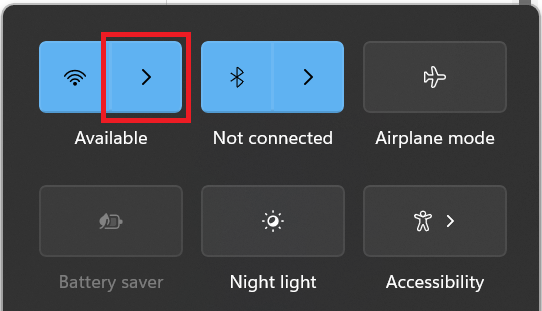
- Find and click your Wi-Fi network name. If you're using the default Wi-Fi settings on your modem's barcode sticker, please note that the Wi-Fi network name may also be called a "SSID".
Not seeing your Wi-Fi network? Follow our basic Wi-Fi settings guide for TPG modems. If your modem isn't from TPG, you should be able to find help on the manufacturer's website. - If you want to stay connected to the Wi-Fi whenever you're in range, tick the Connect Automatically box. Otherwise, just click Connect.
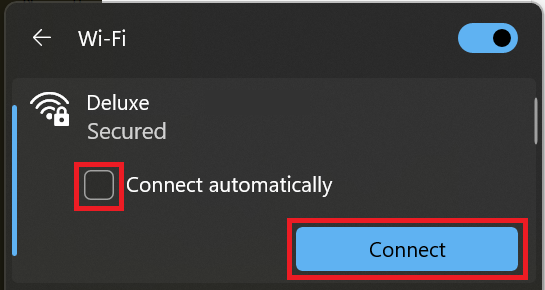
- Enter your Wi-Fi password and click Next to connect to the Wi-Fi. Your computer will remember your password for next time.
Connect to Wi-Fi on Windows 10
- On your desktop, click the Network icon in bottom right-hand corner of your screen to bring up a list of available connections.

-
Find and click your Wi-Fi network name. If you're using the default Wi-Fi settings on your modem's barcode sticker, please note that the Wi-Fi network name may also be called a "SSID".
Not seeing your Wi-Fi network? Follow our basic Wi-Fi settings guide for TPG modems. If your modem isn't from TPG, you should be able to find help on the manufacturer's website. -
If you want to stay connected to the Wi-Fi whenever you're in range, tick the Connect Automatically box. Otherwise, just click Connect.
-
Enter your Wi-Fi password and click OK to connect to the Wi-Fi. Your computer will remember your password for next time.
Connect to Wi-Fi on Windows 7
-
On your desktop or laptop, click the Network icon in bottom right-hand corner of your screen.
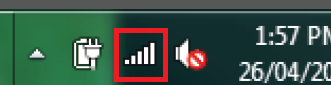
-
Find and click your Wi-Fi network name. If you're using the default Wi-Fi settings on your modem's barcode sticker, please note that the Wi-Fi network name may also be called a "SSID".
Not seeing your Wi-Fi network? Follow our basic Wi-Fi settings guide for TPG modems. If your modem isn't from TPG, you should be able to find help on the manufacturer's website. -
If you want to stay connected to the Wi-Fi whenever you're in range, tick the Connect Automatically box. Otherwise, just click Connect.
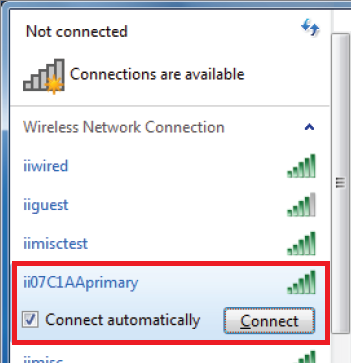
-
Enter your Wi-Fi password in the Security key box and click OK to connect to the Wi-Fi. Your computer will remember your password for next time.
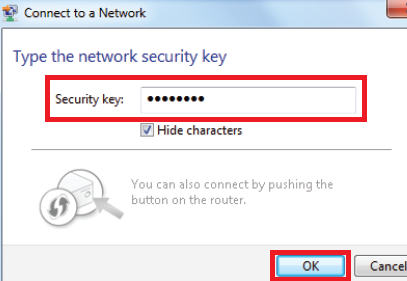
Connect to Wi-Fi on macOS
-
Click the Wi-Fi icon in the top right-hand corner of your screen and hit Turn Wi-Fi On.
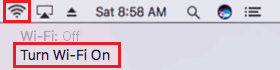
-
Click the Wi-Fi icon again, then find and click your Wi-Fi network name. If you're using the default Wi-Fi settings on your modem's barcode sticker, please note that the Wi-Fi network name may also be called a "SSID".
Not seeing your Wi-Fi network? Follow our basic Wi-Fi settings guide for TPG modems. If your modem isn't from TPG, you should be able to find help on the manufacturer's website.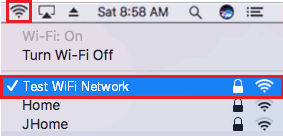
-
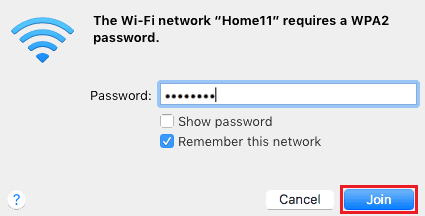
Enter your Wi-Fi password and tick Remember this network, then click Join to connect to the Wi-Fi. Your Mac will remember your password for next time.
Connect to Wi-Fi on iPhone or iPad
-
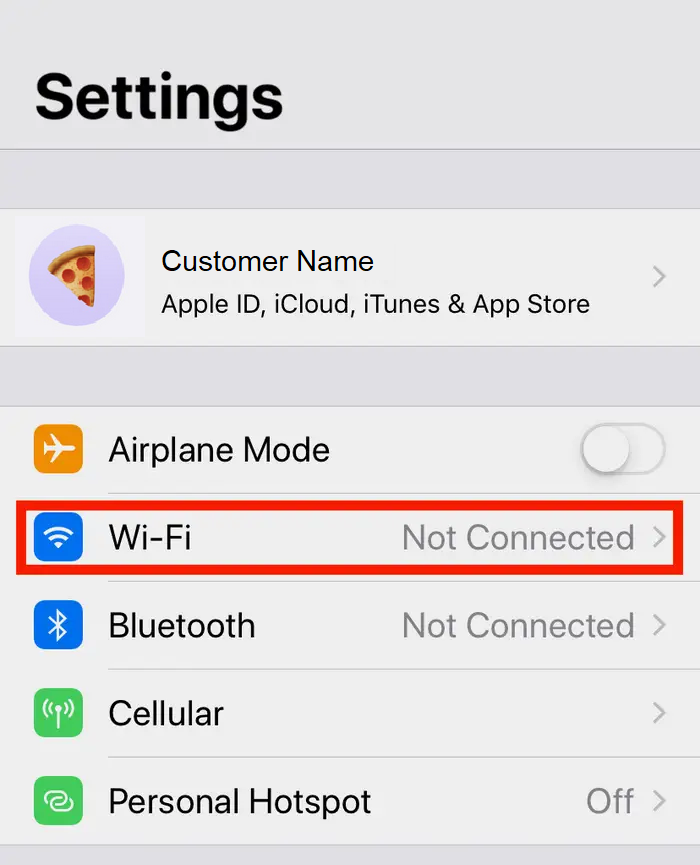
Open the Settings app and tap Wi-Fi.
-
Find and tap your Wi-Fi network name. If you're using the default Wi-Fi settings on your modem's barcode sticker, please note that the Wi-Fi network name may also be called a "SSID".
Not seeing your Wi-Fi network? Follow our basic Wi-Fi settings guide for TPG modems. If your modem isn't from TPG, you should be able to find help on the manufacturer's website.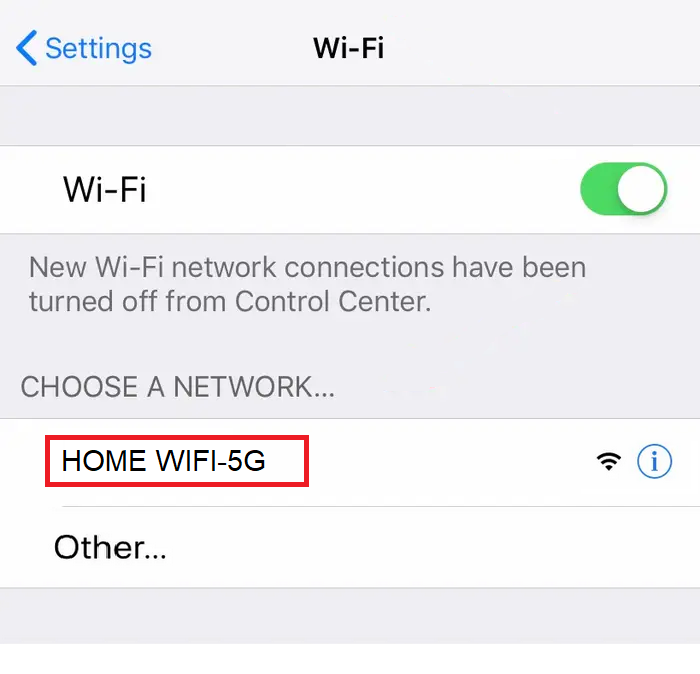
-
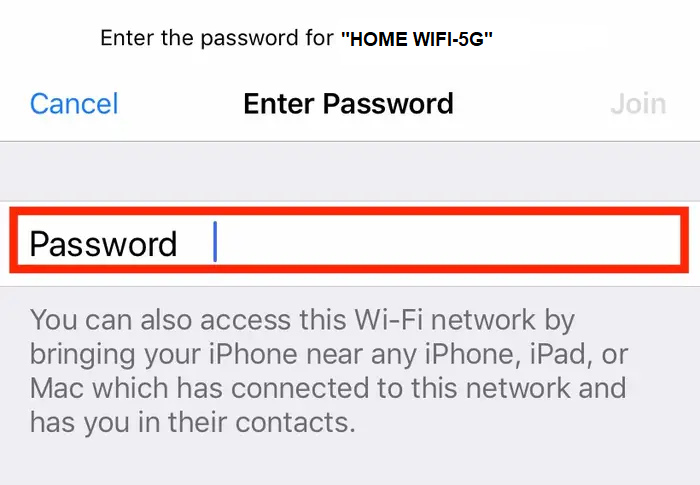
Enter your Wi-Fi password and tap Join to connect to the Wi-Fi. Your phone or tablet will remember your password for next time.
Connect to Wi-Fi on Android OS
Android OS looks different depending on your software version. If this guide doesn't work for you, please check your phone manufacturer's website for help.
-
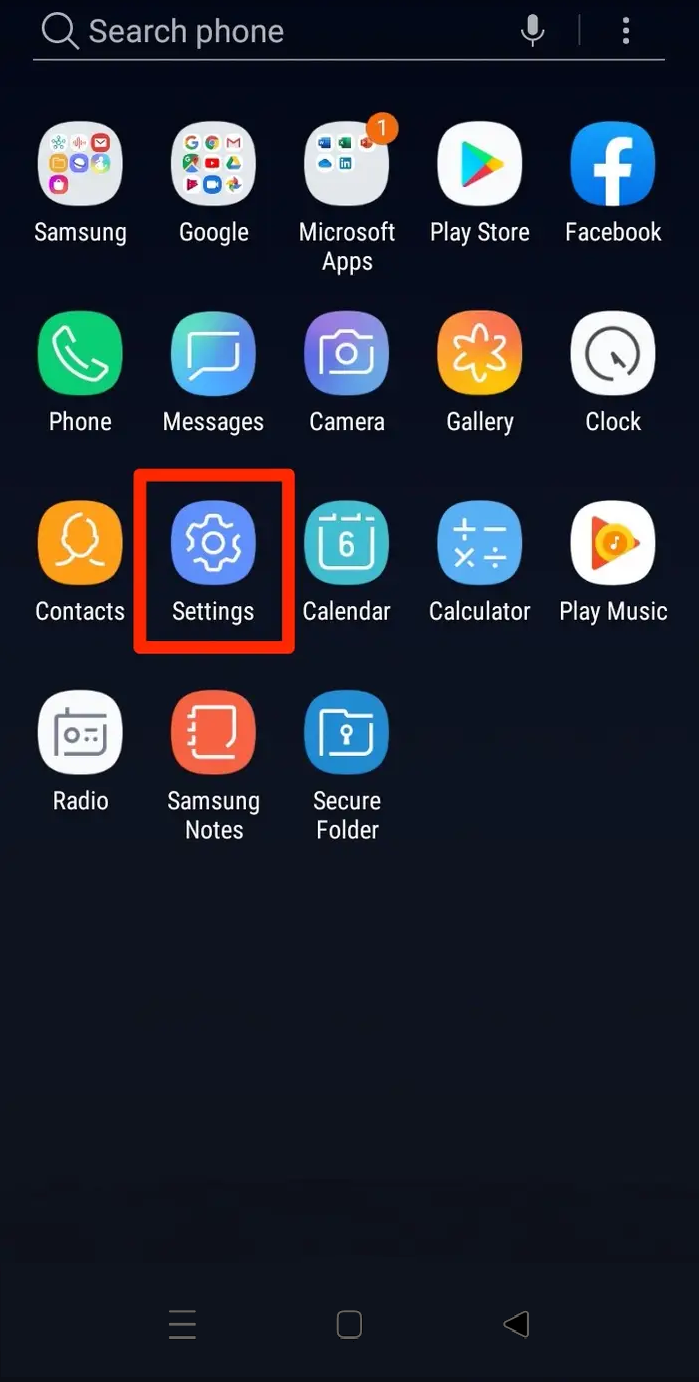
Open the Settings app.
-
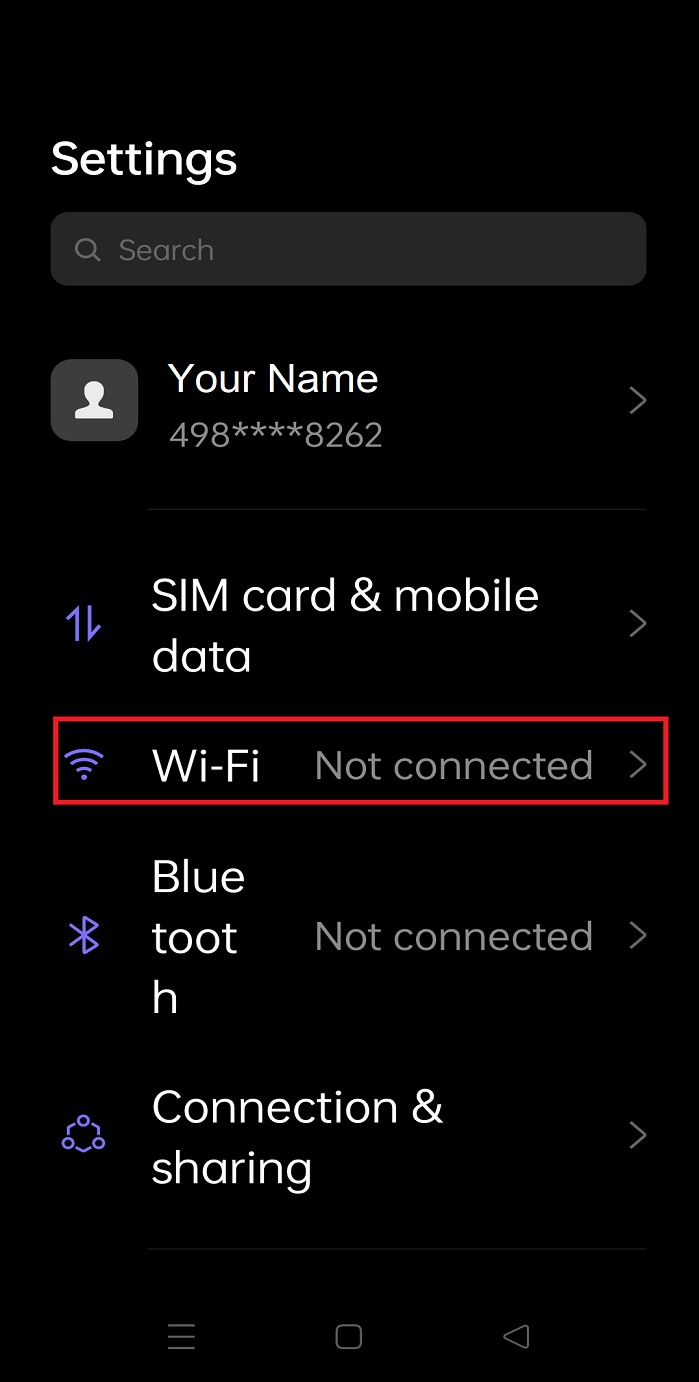
Tap Wi-Fi or Wireless & Networks and make sure Wi-Fi is turned on.
-
Find and tap your Wi-Fi network name. If you're using the default Wi-Fi settings on your modem's barcode sticker, please note that the Wi-Fi network name may also be called a "SSID".
Not seeing your Wi-Fi network? Follow our basic Wi-Fi settings guide for TPG modems. If your modem isn't from TPG, you should be able to find help on the manufacturer's website.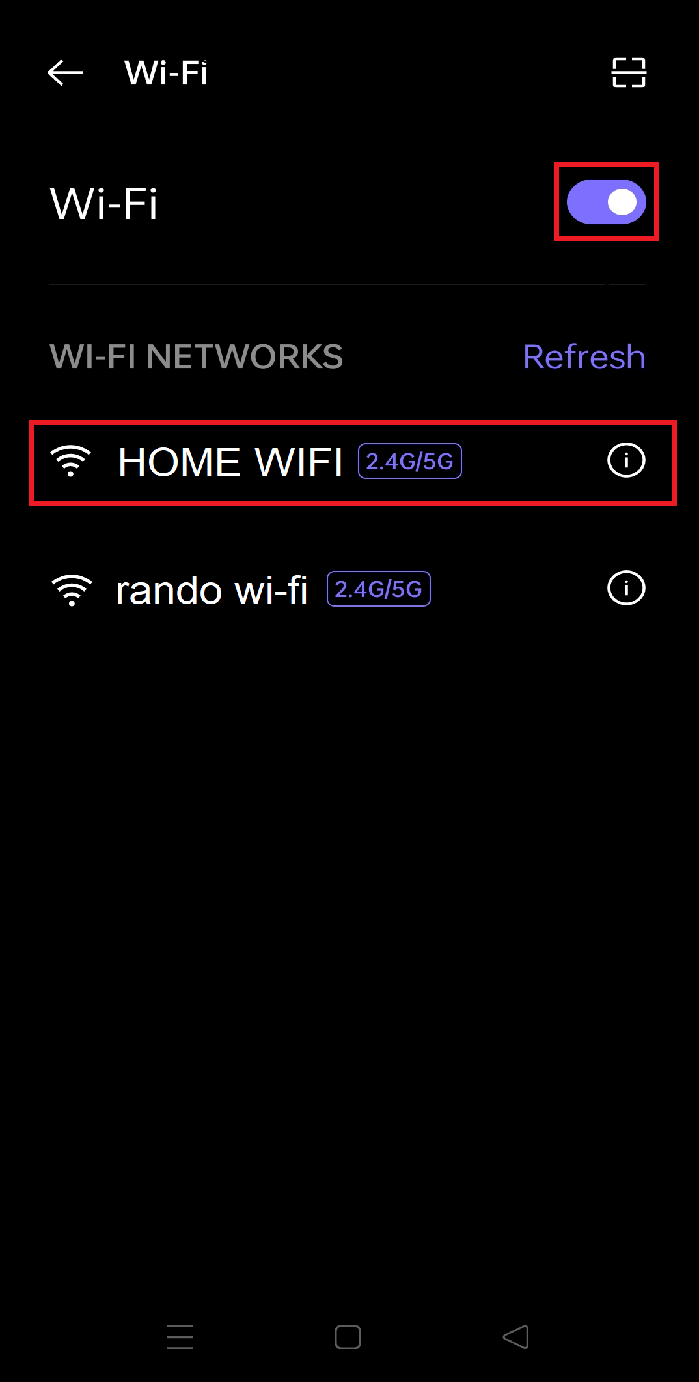
-
Enter your Wi-Fi password and tap the tick icon to connect to the Wi-Fi. Your phone will remember your password for next time.