If your 5G Home Broadband service is running slowly, these steps will help you identify the issue.
- Your service may just be affected by planned maintenance. You can check your address on our Network Status page.
If there is planned maintenance, the results will give you an estimated fix time. - Find your 5G modem and turn off its power outlet for at least 10 seconds.
- Turn the outlet back on and wait 5 minutes for your modem to reboot.
- Check the Signal lights on your modem. If the lights indicate no signal or a weak signal, try moving your modem to a different spot.
Can't get a good signal? Give us a call on 13 14 23 and we'll help you out.
Wi-Fi Max 5G Modem - Front light off or solid orange
Supplied from July 2025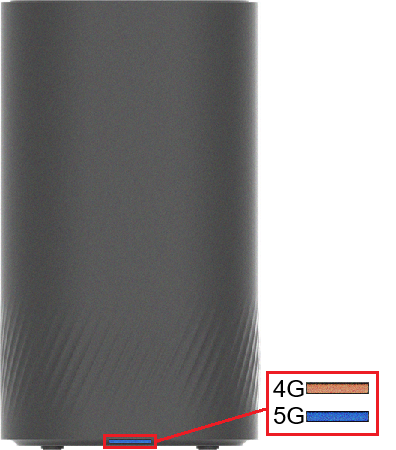
Nokia FastMile 3.2 5G Modem - 5G light off or 1 bar Signal
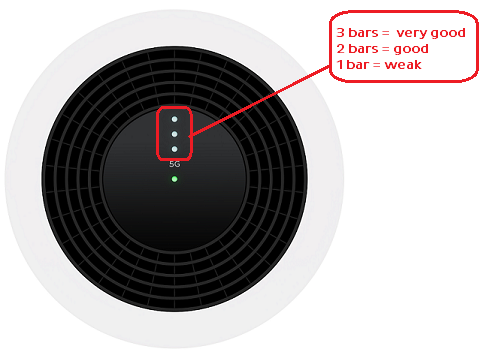
Sagemcom 5866 5G Modem - Signal lights 1 bar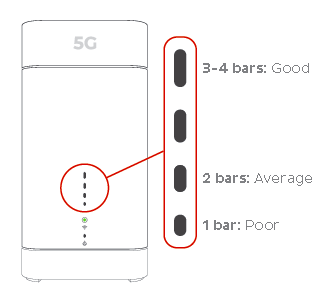
Nokia FastMile R1 5G Modem - 5G light red or orange
The lights on the the outer ring will show the direction the signal is coming from.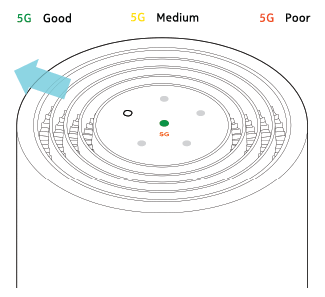
- Do you have any devices connected to your modem with an Ethernet cable? If speeds on these devices are fine but devices on Wi-Fi are slow, switch to Troubleshooting Wi-Fi speed.
- Make sure your modem’s Ethernet cables are in good condition, with “CAT6” or “CAT5e” printed on them.
Older Cat5 Ethernet cables are not recommended for 5G services. You’ll need to replace any broken or chewed cables. - Your speed may temporarily slow down if you’re running more devices or apps than your connection can handle at the same time. For example, if a device is downloading a large file or running a 4K streaming app, your speed should improve when it’s finished.
If you need to run more devices or apps at the same time, you can change your plan in My Account or call us on 13 14 23 for support. - Run a scan on your antivirus/anti-malware software. If any infections are detected, make sure they are quarantined and removed.
Contact your software’s Customer Support if you need help. - Still getting slow speeds? Please call us on 13 14 23 and we’ll help you.
If your 5G Home Broadband service is offline, you won’t be able to visit a website, browse, stream, or download. Email and any other services that use the internet will not work. These steps will help you identify the issue.
-
Have you moved house recently? You'll need to relocate your service online.
You may need to switch to a different type of internet depending on what's available at your new address. -
Find your 5G Modem and make sure that your SIM is inside the SIM slot. If the SIM is missing, please call us on 13 14 23 to order a replacement.
Wi-Fi Max 5G Modem
Supplied from July 2025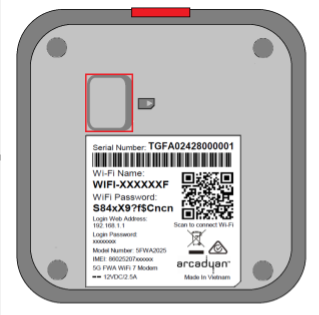
Nokia FastMile 3.2 5G Modem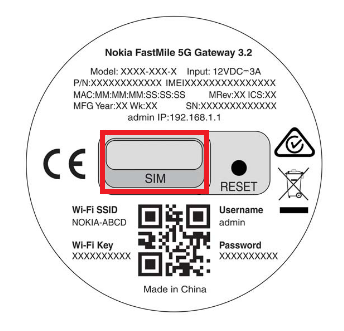
Sagemcom 5866 5G Modem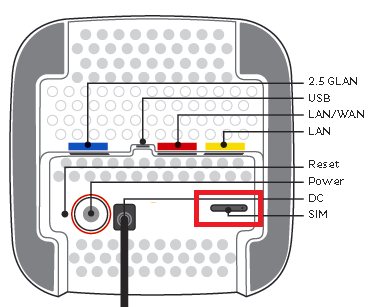
Nokia FastMile R1 5G Modem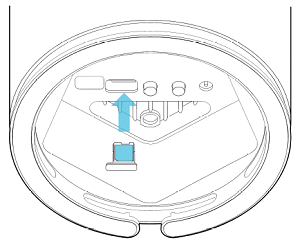
-
Make sure that your modem's cables are plugged in securely and not damaged.
You’ll need to replace any broken or chewed cables. -
Turn off your modem’s power outlet for at least 10 seconds.
-
Turn the outlet back on and wait 5 minutes for your modem to reboot, then see if you can visit a website.
-
Check the Signal lights on your modem. If the lights indicate no signal or a weak signal, try moving your modem to a different spot.
Can't get a good signal? Give us a call on 13 14 23 and we'll help you out.
Wi-Fi Max 5G Modem - Front light off or solid orange
Nokia FastMile 3.2 5G Modem - 5G light off or Signal lights 1 bar
Sagemcom 5866 5G Modem - Signal lights 1 bar
Nokia FastMile 5G Modem - Centre light red and/or 5G light off
The lights on the the outer ring will show the direction the signal is coming from.
-
Do you have any devices connected to your modem with an Ethernet cable? If these devices can visit a website but devices on Wi-Fi can’t, switch to troubleshooting Wi-Fi No Connection.
- If you can view websites on some devices but not others, even when they’re both connected the same way, you may need to fix some browser settings. Check out our guide on Browsing issues.
-
Still can't get online? Please call us on 1300 997 271 and we’ll help you.
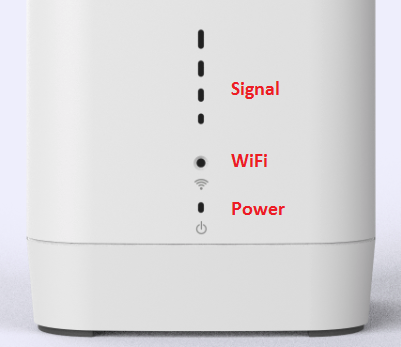
Here's what the status lights mean on your Sagemcom 5866 modem.
| Light | States and meaning |
|---|---|
| Signal | Off = No power or no 4G signal. Green = Your modem is connected to 5G network. 4 lights means a strong signal, 2-3 lights means a medium signal, and 1 light means a weak signal. Yellow = Your modem is connected to 4G network. 4 lights means a strong signal, 2-3 lights means a medium signal, and 1 light means a weak signal. |
| WiFi | Off = No power. Green = Wi-Fi is turned on. Orange = Wi-Fi is turned off. This light flashes when a device is connecting to the Wi-Fi by Wi-Fi Protected Setup (WPS). Red = Your modem has a software issue or is overheating. Move your modem away from heat sources and and call us on 1300 997 271 if the issue persists. |
| Power | Off = No power. Green = Your modem has power. This light flashes during a firmware upgrade. Red = Your modem failed to start up properly. Restart your modem and call us on 1300 997 271 if the issue persists. |
Your modem will take care of the hard stuff like internet settings, but we’ll need your help to plug it in. The main cables you need will come in the box, and you can grab extra Ethernet cables from the shops if you need them.
Note: Your TPG 5G SIM is already inside your 5G Modem. Please don't remove it because the SIM won't work in other devices.
Please note that 5G Home Broadband is only suitable for casual online gaming. Learn more.
Choose your modem to get started:
| Picture | Modem |
|---|---|
|
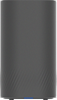
Wi-Fi Max 5G Modem |
|
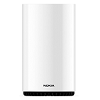
Nokia FastMile 3.2 5G Modem |
|
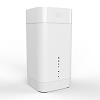
Sagemcom 5866 5G Modem |
How to plug in your Wi-Fi Max 5G Modem for 5G Home Broadband
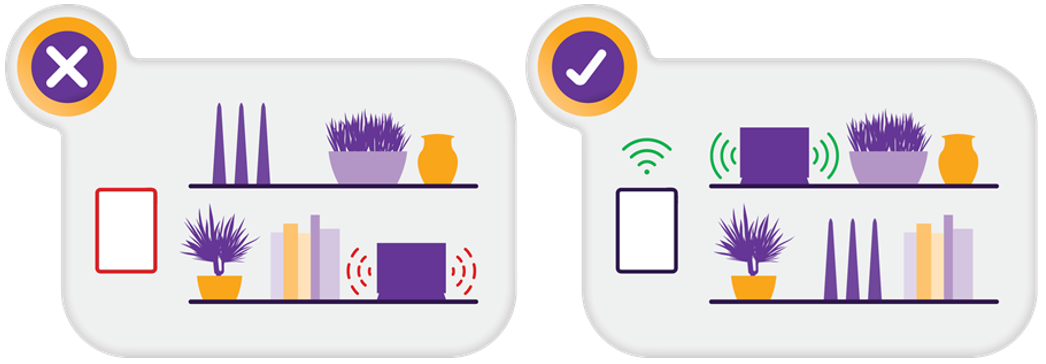
- Find a good spot for your modem
- It's best to choose a clear, open location on a shelf or table - ideally near a window.
- Don't put your modem on the floor or inside a cupboard because this will cause a weak signal.
- You can try different spots if your first spot isn’t giving you a strong signal.
- Power on your modem
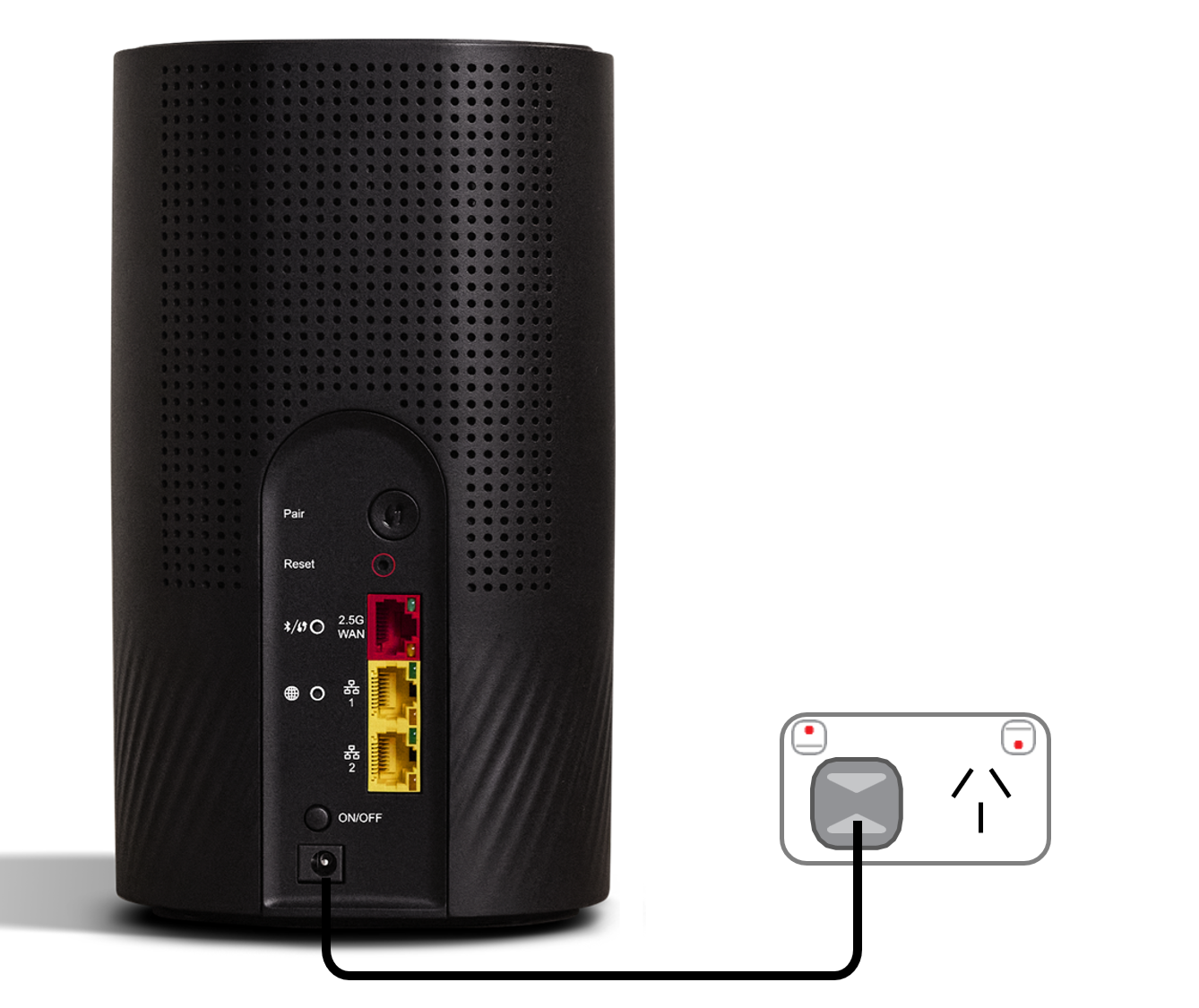
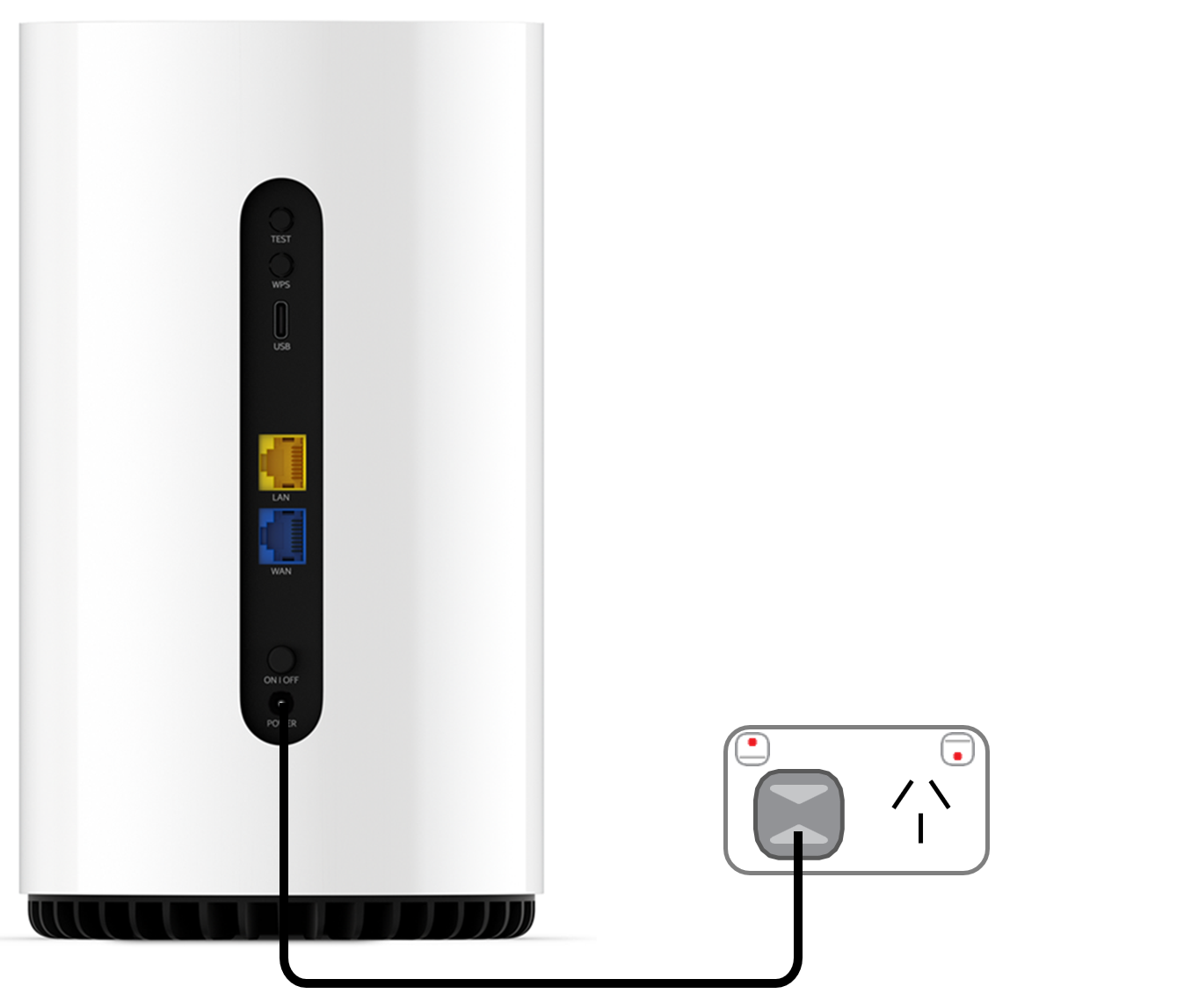
- Use the power cable to plug your modem's Power port into a power outlet.
- Press the ON/OFF button.
- Check your 5G signal
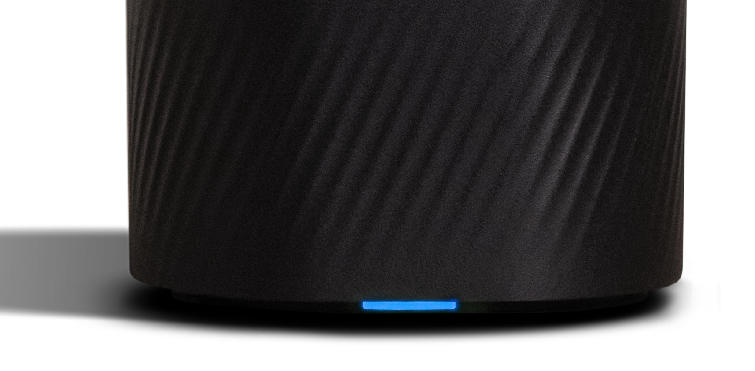
- Check the light on the front of your modem. If it's blue, you’re online with the 5G network and you can start connecting your devices.
- If the light on the front of your modem is solid orange, then you're online with the 4G network. Your modem may connect to 4G if it provides a better signal than 5G. Try moving your modem to a different spot.
- If the light on the front of your modem is red, then your modem can’t get a signal on either 5G or 4G. Try moving your modem to a different spot.
- Can’t get a blue light? Give us a call on 13 14 23 and we'll help you out.
- Connect devices via Ethernet
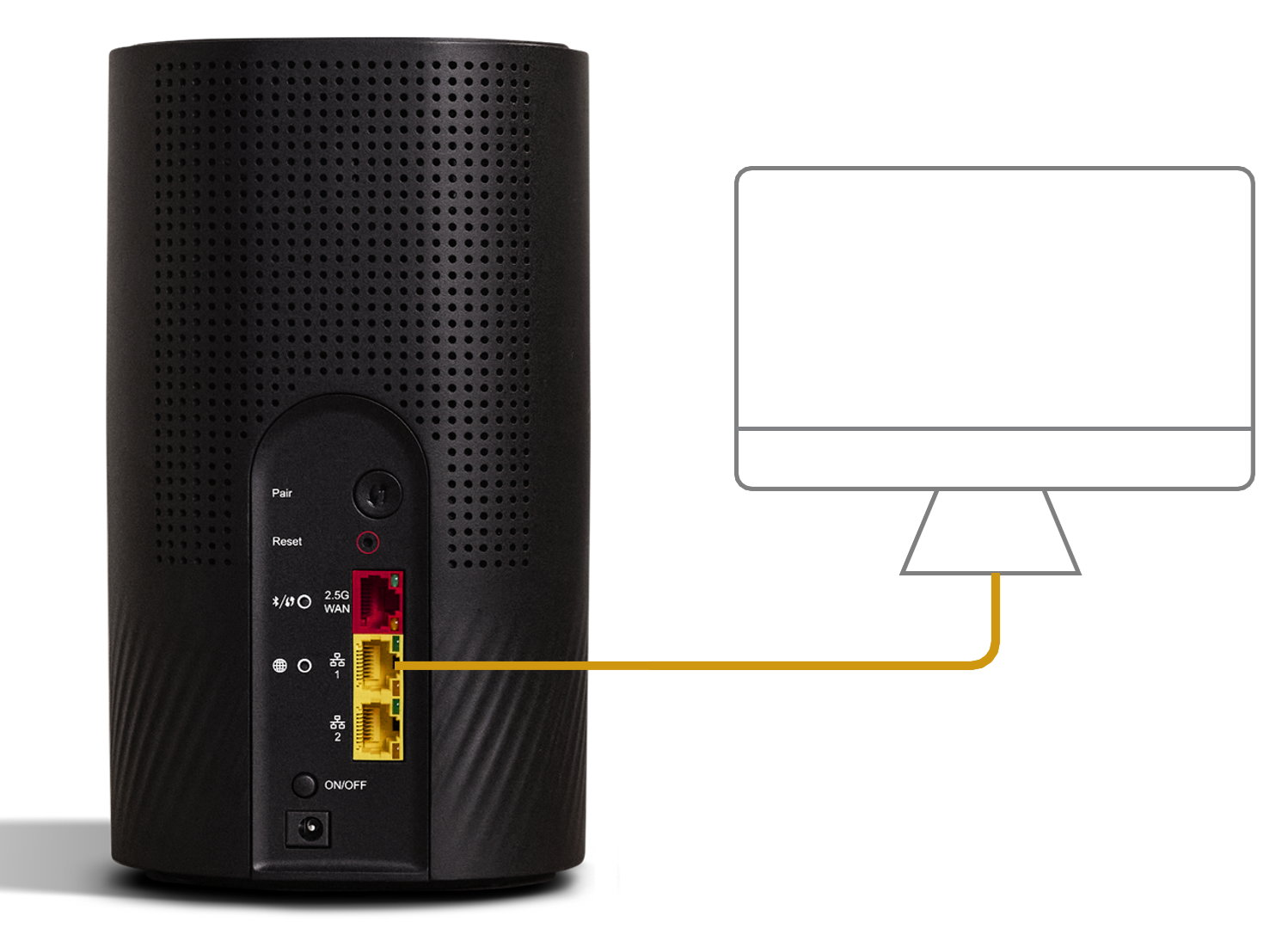
- For online gaming and HD/4K streaming, Ethernet is better than Wi-Fi. Use Ethernet for desktop PCs, gaming consoles or TVs if you can.
- You can use additional Ethernet cables to connect up to 2 devices to the yellow LAN ports.
- Need more devices connected by Ethernet? You can plug a network switch or hub into one of the LAN ports.
- You can connect more devices over Wi-Fi.
- Connect your Wi-Fi Devices
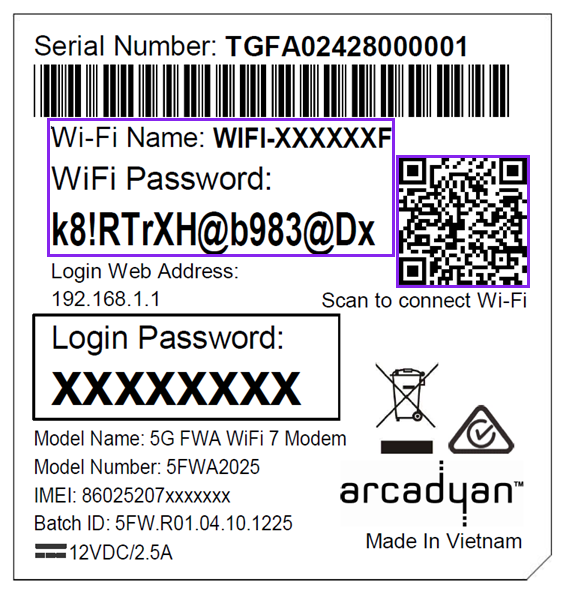
- Check the barcode sticker on the base of your modem. The default name of your Wi-Fi network is printed next to Wi-Fi Name.
- Select your Wi-Fi Name on your device, then enter the password printed below Wi-Fi Password.
- If you’re using a smartphone, you can just scan the QR code on your modem’s barcode sticker.
- Once connected, your devices will automatically use the best Wi-Fi in range, so you don’t need to manually switch between 2.4GHz and 5GHz networks.
- Download the My Internet Connect app.
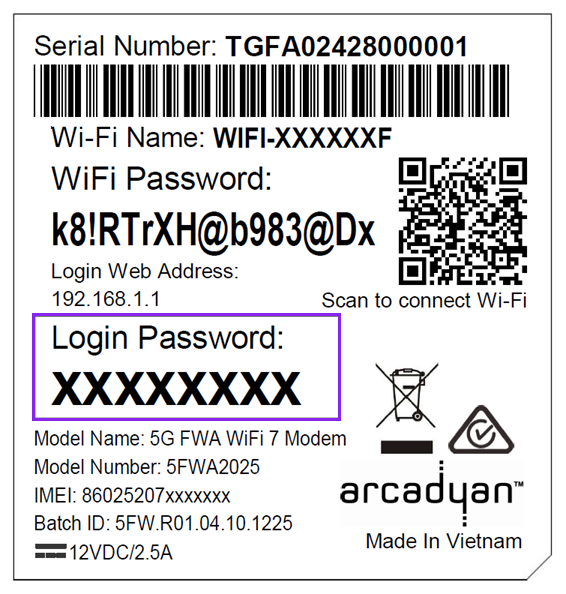
It’s easy to manage your home network with the My Internet Connect app.- Make sure your device is connected to your modem’s Wi-Fi network.
- Enter the Login Password on your modem’s barcode sticker.
- Need help? Call our team using these numbers:
- 13 14 23 in Australia.
- +61 2 9007 3023 from overseas.
- National Relay Service for hearing impaired customers.
How to plug in your Nokia FastMile 3.2 5G Modem for 5G Home Broadband
Note: Your TPG 5G SIM is already inside your modem. Please don't remove it because the SIM won't work in other devices.
- Find a good spot for your modem
- It's best to choose a clear, open location on a shelf or table - ideally near a window.
- Don't put your modem on the floor or inside a cupboard because this will cause a weak signal.
- You can try different spots if your first spot isn’t giving you a strong signal.
- Power on your modem
- Use the power cable to plug your modem's Power port into a power outlet.
- Press the ON/OFF button.
- Check your 5G signal
- Check the lights on the top of your modem. If the 5G light is lit, you’re online with the 5G network and you can start connecting your devices.
Note: You can press the Test button on the back of your modem at any time to test your signal. The 3 signal bars above the 5G light will light up: 3 bars is a strong signal, 2 bars is a good signal and 1 bar is a weak signal. If you only get 1 bar, try moving your modem to a different spot. - If the 5G light is off and the centre light is green, then you're online with the 4G network. Your modem may connect to 4G if it provides a better signal than 5G. Try moving your modem to a different spot.
- If the centre light is red, then your modem can’t get a signal on either 5G or 4G. Try moving your modem to a different spot.
- No 5G light or can’t get a good signal? Give us a call on 13 14 23 and we'll help you out.
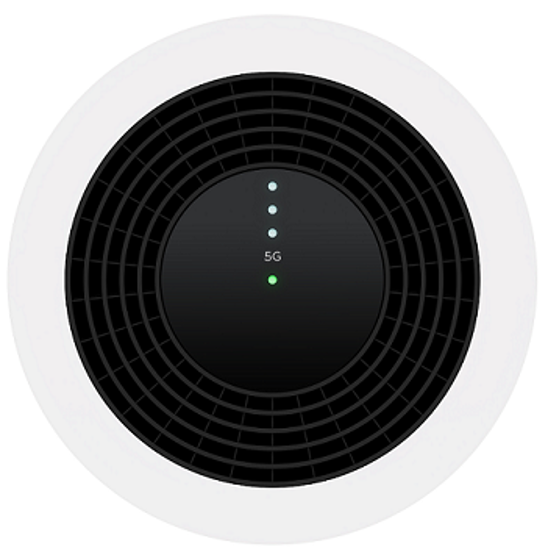
- Check the lights on the top of your modem. If the 5G light is lit, you’re online with the 5G network and you can start connecting your devices.
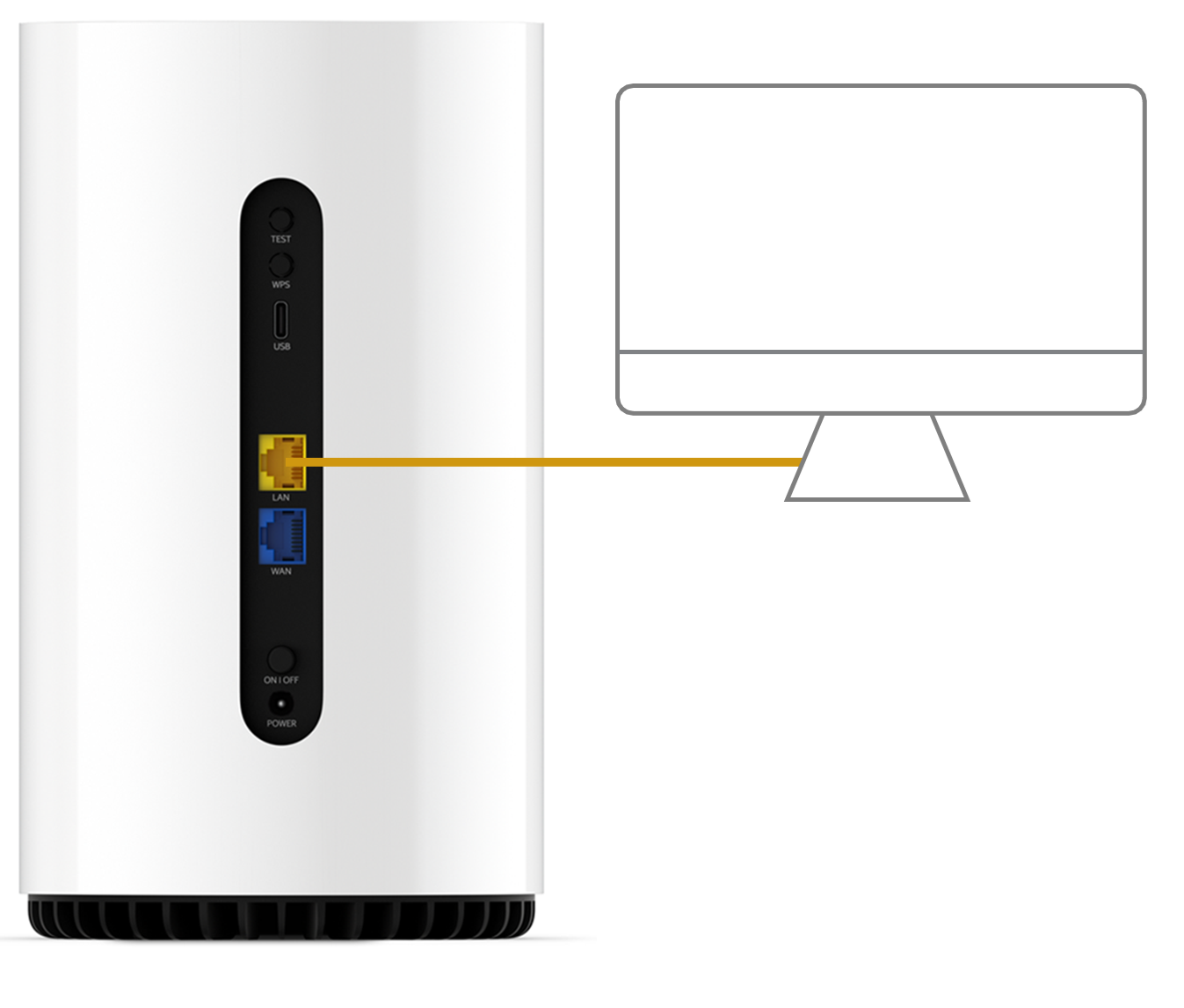
- Connect devices via Ethernet
- For online gaming and HD/4K streaming, Ethernet is better than Wi-Fi. Use Ethernet for desktop PCs, gaming consoles or TVs if you can.
- You can use additional Ethernet cables to connect up to 2 devices to the yellow LAN ports.
- Need more devices connected by Ethernet? You can plug a network switch or hub into one of the LAN ports.
- You can connect more devices over Wi-Fi.
- Connect your Wi-Fi devices
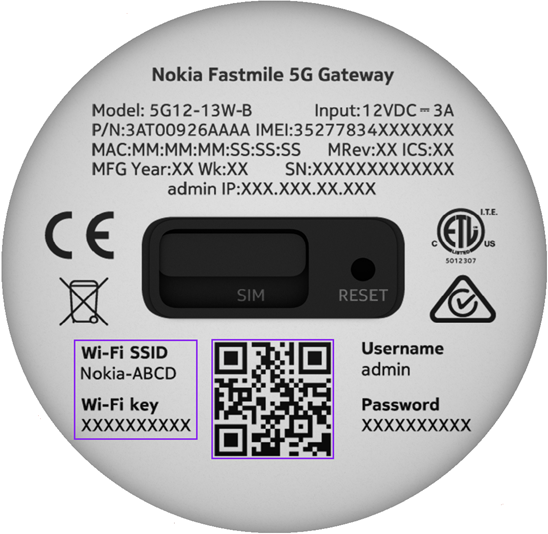
- Check the barcode sticker on the base of your modem. The default name of your Wi-Fi network is printed below Wi-Fi SSID.
- Select your Wi-Fi Name on your device, then enter the password printed below Wi-Fi Key.
- If you’re using a smartphone, you can just scan the QR code on your modem’s barcode sticker.
- Once connected, your devices will automatically use the best Wi-Fi in range, so you don’t need to manually switch between 2.4GHz and 5GHz networks.
- Need help? Call our team using these numbers:
- 13 14 23 in Australia.
- +61 2 9007 3023 from overseas.
- National Relay Service for hearing impaired customers.
How to plug in your Sagemcomm 5866 5G Modem for 5G Home Broadband
- Find a good spot for your 5G Modem. It's best to choose a clear, open location on a shelf or table - ideally near a window.
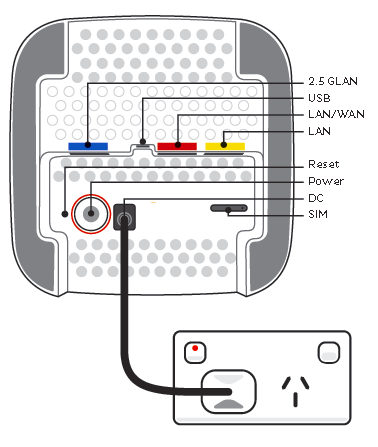
You can try different spots if your first spot isn’t giving you a strong signal. Don't put your modem on the floor or inside a cupboard because this will cause a weak signal. - Use the power cable to plug your modem's Power port into a power outlet and press the Power button on the base.
-
Leave your modem alone for 3-5 minutes while it runs through its automatic setup.
-
Check the Signal lights on your modem. If you have 3-4 bars, you’re online with a good signal and you can start connecting your devices.
-
If the Signal lights are off or have low bars, try moving your modem to a different spot.
Can't get a signal? Give us a call on 13 14 23 and we'll help you out.
-
There are 3 ways to connect your devices to the Wi-Fi:
- A) Use the Wi-Fi Network name and Password on your modem's barcode sticker.
- B) You can also connect phones by scanning the Wi-Fi QR code on your modem's barcode sticker.
- C) Turn on Wi-Fi Protected Setup (WPS) on your device then press your modem's WPS button.
If you want to change your Wi-Fi name or password, use this guide.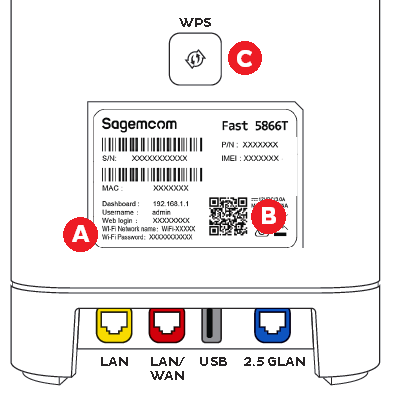
- Your devices will automatically connect to the best Wi-Fi possible. If your Wi-Fi’s running slow, check out Improving Wi-Fi Signal.
- For online gaming or HD/4K streaming, Ethernet is better than Wi-Fi. If you have extra Ethernet cables, you can connect up to 3 devices to your modem’s LAN ports.
- Once your devices are connected, you're good to go.
We’re very sorry for your loss. We recognise how difficult this time can be and we’re here to support you by making managing your account as simple as possible. This support article explains how to close an account or transfer ownership of a mobile number when the account holder or user has passed away
Select one of the links below to jump to a query:
How to close an account and/or transfer ownership of services
To close an account or transfer a mobile number after someone has passed away, please complete the following steps.
When contacting us, please have these details ready:
- Account holder’s TPG username, TPG Mobile number or TPG account number
- Account holder's full name
- Account holder's date of birth
- Account holder's home address
We may ask you to email us a copy of the Death Certificate.
Important: The person contacting us should be an authorised representative of the deceased, such as:
- Next of kin
- Executor or administrator of the estate
- Power of attorney
- Trustee or solicitor administering the estate
- An authorised representative listed on the account
Notify us
You can notify us of a loved one’s passing in one of two ways.
Option 1: Australian Death Notification Service
You can visit the Australian Death Notification Service (ADNS) website to digitally notify multiple organisations of someone’s passing.
Once you submit the online form, your information is shared with the organisations you select, who will then guide you through the next steps.
Important information:
- This option is only available if the death certificate was issued in Australia.
- ADNS will validate the details of the deceased through the Australian Death Check (ADC).
- Once validated, the information will be passed to the appropriate TPG team.
TPG will contact you within 10 business days of your submission to discuss the next steps.
Option two: Contact TPG directly
You can contact TPG directly on 13 14 23 to notify us of the account holder’s or users passing.
Once you reach out, our team will guide you through the next steps to close the account or transfer ownership of the mobile number.
Please note that if you choose to transfer ownership of the mobile number, you’ll also need to meet our identification requirements.
If you've been granted Power of Attorney to act for the account holder, you’ll need to send us the Power of Attorney and supporting documentation. The supporting documentation you need depends on whether you have a General or Enduring Power of Attorney, and the state or territory you're in.
Select one of the links below to jump to a query:
- Where to send your Power of Attorney and supporting documents
- Supporting documentation you need for different types of Power of Attorney
- Other circumstances where you can act on behalf of the account holder
Where to send your Power of Attorney and supporting documents
- Mail: TPG Customer Relations, PO Box 1844, Macquarie Centre, North Ryde, NSW 2113
- Fax: 02 9850 0813, Attn: Customer Relations Team
Supporting documentation you need for different types of Power of Attorney
General Power of Attorney
Depending on the state or territory, you’ll need to provide us with the following:
- NSW Powers of Attorney Act 2003 (NSW)
-
Must be in prescribed form x See example of NSW Power of Attorney
Registered x
Date of Power of Attorney ✓
Principal name and address ✓
Principal representative name and address x
Attorney name and address ✓
Principal signature ✓
Principal’s representative signature x
Date of principal signing ✓
Principal’s signature witnessed by prescribed witness ✓
Witness name ✓
Witness address ✓
Date of witness signing x
Acceptance by attorney x
Attorney signature x
Date of attorney signing x
- VIC Instruments Act 1958 (VIC)
-
Must be in prescribed form x See example of VIC Power of Attorney
Registered x
Date of Power of Attorney ✓
Principal name and address ✓
Principal representative name and address x
Attorney name and address ✓
Principal signature ✓
Principal’s representative signature x
Date of principal signing x
Principal’s signature witnessed by prescribed witness x
Witness name x
Witness address x
Date of witness signing x
Acceptance by attorney x
Attorney signature x
Date of attorney signing x
- QLD Powers of Attorney Act 1998 (QLD)
-
Must be in prescribed form ✓Must use QLD Power of Attorney
Registered x
Date of Power of Attorney x
Principal name and address x
Principal representative name and address x
Attorney name and address x
Principal signature x
Principal’s representative signature x
Date of principal signing x
Principal’s signature witnessed by prescribed witness x
Witness name x
Witness address x
Date of witness signing x
Acceptance by attorney x
Attorney signature x
Date of attorney signing x
- ACT Powers of Attorney Act 2006 (ACT)
-
Must be in prescribed form x
Registered x
Date of Power of Attorney ✓
Principal name and address ✓
Principal representative name and address x
Attorney name and address ✓
Principal signature ✓
Principal’s representative signature x
Date of principal signing x
Principal’s signature witnessed by prescribed witness x
Witness name ✓
Witness address ✓
Date of witness signing ✓
Acceptance by attorney x
Attorney signature x
Date of attorney signing x
- SA Powers of Attorney and Agency Act 1984 (SA)
-
Must be in prescribed form x See example of SA Power of Attorney
Registered x
Date of Power of Attorney ✓
Principal name and address ✓
Principal representative name and address x
Attorney name and address ✓
Principal signature ✓
Principal’s representative signature x
Date of principal signing x
Principal’s signature witnessed by prescribed witness x
Witness name ✓
Witness address x
Date of witness signing x
Acceptance by attorney x
Attorney signature x
Date of attorney signing x
- TAS Powers of Attorney Act 2000 (TAS)
-
Must be in prescribed form ✓ Must use TAS Power of Attorney
Registered ✓
Date of Power of Attorney ✓
Principal name and address ✓
Principal representative name and address x
Attorney name and address ✓
Principal signature ✓
Principal’s representative signature x
Date of principal signing x
Principal’s signature witnessed by prescribed witness x
Witness name ✓
Witness address ✓
Date of witness signing x
Acceptance by attorney x
Attorney signature x
Date of attorney signing x
- NT Powers of Attorney Act 2006 (NT)
-
Must be in prescribed form x See example of NT Power of Attorney
Registered x
Date of Power of Attorney x
Principal name and address ✓
Principal representative name and address ✓
Attorney name and address ✓
Principal signature ✓
Principal’s representative signature ✓
Date of principal signing x
Principal’s signature witnessed by prescribed witness ✓ If principal's representative signing on behalf of principal, principal's representative must sign in presence of 2 prescribed witnesses
Witness name ✓
Witness address x
Date of witness signing x
Acceptance by attorney x
Attorney signature ✓
Date of attorney signing x
- WA Guardianship and Administration Act 1990 (WA)
-
Must be in prescribed form x
Registered x
Date of Power of Attorney ✓
Principal name and address ✓
Principal representative name and address x
Attorney name and address ✓
Principal signature ✓
Principal’s representative signature x
Date of principal signing x
Principal’s signature witnessed by prescribed witness x
Witness name ✓
Witness address x
Date of witness signing x
Acceptance by attorney x
Attorney signature x
Date of attorney signing x
Enduring Power of Attorney
Depending on the state or territory, you’ll need to provide us with the following:
- NSW Powers of Attorney Act 2003 (NSW)
-
Prescribed ✓Must use NSW Enduring Power of Attorney
Registered x
Date of Power of Attorney x
Principal name, address and signature x
Principal’s signature witnessed by adult witness x
Principal’s signature witnessed by prescribed witness x
Witness signature x
Date of witness signing x
Acceptance by attorney x
Attorney name x
Attorney signature x
Date of attorney signing x
- VIC Instruments Act 1958 (VIC)
-
Prescribed x
Registered x
Date of Power of Attorney ✓
Principal name, address and signature ✓
Principal’s signature witnessed by adult witness ✓ Need 1 adult witness and 1 prescribed witness
Principal’s signature witnessed by prescribed witness ✓ Need 1 adult witness and 1 prescribed witness
Witness signature ✓
Date of witness signing x
Acceptance by attorney x
Attorney name ✓
Attorney signature x
Date of attorney signing x
- QLD Powers of Attorney Act 1998 (QLD)
-
Prescribed ✓Must use QLD Enduring Power of Attorney
Registered x
Date of Power of Attorney x
Principal name, address and signature x
Principal’s signature witnessed by adult witness x
Principal’s signature witnessed by prescribed witness x
Witness signature x
Date of witness signing x
Acceptance by attorney x
Attorney name x
Attorney signature x
Date of attorney signing x
- ACT Powers of Attorney Act 2006 (ACT)
-
Prescribed x
Registered x
Date of Power of Attorney ✓
Principal name, address and signature ✓
Principal’s signature witnessed by adult witness ✓ Witnessed by 2 adult witnesses and containing a certificate in accordance with s 22
Principal’s signature witnessed by prescribed witness x
Witness signature ✓
Date of witness signing ✓
Acceptance by attorney ✓
Attorney name ✓
Attorney signature ✓
Date of attorney signing ✓
- SA Powers of Attorney and Agency Act 1984 (SA)
-
Prescribed x See example of SA Enduring Power of Attorney
Registered x
Date of Power of Attorney ✓
Principal name, address and signature ✓
Principal’s signature witnessed by adult witness ✓
Principal’s signature witnessed by prescribed witness x
Witness signature x
Date of witness signing x
Acceptance by attorney ✓ Must use SA Form of Acceptance of Enduring Power of Attorney
Attorney name ✓
Attorney signature ✓
Date of attorney signing x
- TAS Powers of Attorney Act 2000 (TAS)
-
Prescribed x See example of TAS Enduring Power of Attorney
Registered x
Date of Power of Attorney ✓
Principal name, address and signature ✓
Principal’s signature witnessed by adult witness ✓ Need 2 adult witnesses
Principal’s signature witnessed by prescribed witness x
Witness signature ✓
Date of witness signing x
Acceptance by attorney ✓Must use TAS Form of Acceptance of Enduring Power of Attorney
Attorney name ✓
Attorney signature ✓
Date of attorney signing x
- NT Powers of Attorney Act 2006 (NT)
-
Prescribed x See example of NT Enduring Power of Attorney
Registered ✓
Date of Power of Attorney x
Principal name, address and signature ✓
Principal’s signature witnessed by adult witness x
Principal’s signature witnessed by prescribed witness ✓
Witness signature ✓
Date of witness signing x
Acceptance by attorney ✓Must use NT Form of Acceptance of Enduring Power of Attorney
Attorney name ✓
Attorney signature ✓
Date of attorney signing x
- WA Guardianship and Administration Act 1990 (WA)
-
Prescribed ✓Must use WA Enduring Power of Attorney
Registered x
Date of Power of Attorney x
Principal name, address and signature x
Principal’s signature witnessed by adult witness x
Principal’s signature witnessed by prescribed witness x
Witness signature x
Date of witness signing x
Acceptance by attorney x
Attorney name x
Attorney signature x
Date of attorney signing x
Other circumstances where you can act on behalf of the account holder
Financial counsellor or debt repair agency
If you are a financial counsellor or a representative of a debt repair agency, call us on 13 14 23 and a case manager will contact you.
The account holder has passed away
If the account holder has passed away, please see Managing an account following a bereavement.
The account holder is incarcerated
If the account holder is incarcerated, you’ll need Power of Attorney to close the account or authorise a transfer of ownership into someone else’s name.
The account holder is hearing impaired
If the account holder is hearing impaired, they can use the Australian government’s National Relay Service.
The account holder does not speak English
If the account holder does not speak English, they can use the Australian government’s Translator and Interpreting Service (TIS).
If you have multiple TPG accounts, you can link them together and manage them using the same login. Accounts are linked automatically if you order more TPG services using your existing TPG username.
Select one of the links below to jump to a query:
- How to link or unlink your TPG accounts
- How services are invoiced for linked TPG accounts
- How to manage linked TPG accounts
How to link or unlink your TPG accounts
To link or unlink your TPG accounts, please call us on 13 14 23.
Important:
- Only an authorised contact can link an account. The account holder for both account must be the same person - their name and date of birth must match.
- If you unlink your accounts, you may lose any bundling offers, invoices will no longer be consolidated, and you'll be required to log into each individual account to manage your services.
How services are invoiced for linked TPG accounts
Your payment details and invoices will be combined for linked accounts, except prepaid services which will continue to be invoiced separately.
Important:
- You're responsible for paying for each service on your linked TPG accounts. It's a good idea to check your payment details in My Account after linking accounts.
- The first time services are combined on the same invoice, you may see adjustments like partial monthly fees to align the services to the same billing period.
How to manage linked TPG accounts
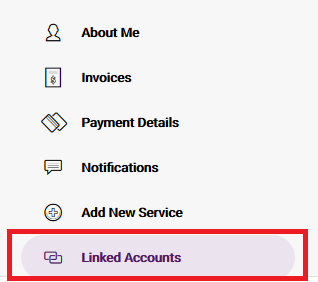
Hit Linked Accounts: in My Account to see your linked accounts:
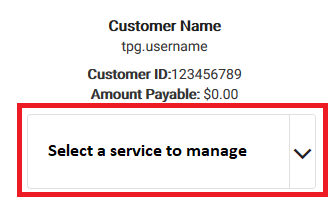
You can switch between different services on linked accounts using the Select a service to manage drop-down:
We take fraud seriously at TPG, and we’re committed to helping you if you suspect that you’ve been a victim of fraud.
Online fraud generally involves phishing, which as an attempt to get private or personal details by pretending to be a legitimate entity. Phishing websites, emails and text messages can be difficult to spot. Try to look out for incorrect spelling and grammar, and poor layout, imagery and styling.
Select one of the links below to jump to a query:
- What to do if you receive suspicious correspondence or calls claiming to be from TPG
- How TPG can help if you believe you’re a victim of fraud
- My number has been fraudulently used to create a service with TPG, or I suspect it has.
- There's a number on my account that I don't recognise
- I didn’t receive my order
- My number has been fraudulently transferred from TPG to another provider, or I suspect it has
- There are transactions from TPG on my bank/credit card statement that I don't recognise
- Current scams and hoaxes
- How to protect your device
What to do if you receive suspicious correspondence or calls claiming to be from TPG
If you receive a call, letter, email, text message or other communication that claims to be from TPG and you suspect it may be a scam or hoax, give us a call on 13 14 23.
Scam Emails and Text Messages
If you receive an email or text message that is unknown, unsolicited or you suspect to be fraudulent including messages with a one-time code that you didn’t initiate, this is what we advise:
- Don’t reply to the SMS or email.
- Don’t provide any personal details.
- Don’t click on any links.
- Don’t open any attachments.
- Don’t call any numbers associated with the SMS or email.
- Don’t share any content of the SMS or email with anyone.
- Email a screenshot of the message to customer-relations@tpg.com.au.
- Report the email or SMS to Scamwatch.
- Email customer-relations@tpg.com.au and provide a screenshot of the suspected fraud message, the date and time you received it, how many times you received it and your mobile number.
Scam Phone Calls
TPG only calls our customers from selected numbers. If you receive a phone call that you suspect is fraudulent, this is what we advise:
- Don’t give the caller any personal details and hang up.
- Check that the call is coming from a number that’s not a number that we use.
- Block the caller/sender’s number using your phone’s built-in call rejection features or by downloading an app to restrict incoming calls and messages.
- Let the call go to voicemail and then listen to any message left to ascertain if this might be a genuine call. For more information on how to set up and manage voicemail, head to our support page.
- Report the call to Scamwatch.
- Report the email or SMS to Scamwatch.
- Email customer-relations@tpg.com.au and provide the date and time you received the call, how many calls you received in total and your mobile number.
How TPG can help if you believe you’re a victim of fraud
My number has been fraudulently used to create a service with TPG, or I suspect it has.
If you believe that someone has stolen your ID to create an account with TPG, please email us at customer-relations@tpg.com.au.
There's a number on my account that I don't recognise
If there’s a number on your account that you don’t recognise, please email us at customer-relations@tpg.com.au.
I didn’t receive my order
If you didn’t receive your order it’s best to call us on 13 14 23 from any phone.
My number has been fraudulently transferred from TPG to another provider, or I suspect it has
If you suspect someone has attempted to, or has fraudulently transferred your mobile number to another provider without your knowledge or consent, please immediately report this to:
- Our Customer Service on 13 14 23 from any phone.
- The Australian Federal Police or the law enforcement agency in your state or territory.
- Scamwatch.
There are transactions from TPG on my bank/credit card statement that I don't recognise
If there are transactions from TPG on your bank/credit card statement that you don’t recognise, contact your bank immediately and ask them to raise a payment dispute with TPG and reverse the charges back to you.
Current scams and hoaxes
If you’ve been scammed, it’s best to report it to Scamwatch. Check out our list of the latest scams.
I think I have lost money to a scammer
Contact your financial institution immediately if you believe you have lost money to a scammer or believe your banking or credit card details may have been shared with a scammer.
They may be able to stop a transaction or close your account if the scammer has your account details.
How to protect your device
Here are some ways to protect your device:
- Make sure to use strong PINs and passwords and change them regularly. Avoid easy to guess PINs and passwords like ‘1234’, ‘0000’ and ‘password’.
- Lock your mobile handset and voicemail with strong PINs.
- Think carefully before clicking on a link or opening suspicious emails and attachments.
- Pay attention to your app permissions (what your apps are allowed to do and access, e.g. location, call history, etc). Only allow necessary permissions.
TPG understands the importance of staying connected when you've been affected by a natural disaster such as bushfire or flood.
In addition to assistance offered under our Financial Hardship Policy, options available to affected customers include:
- Free connection to alternative premises/accommodation while your home is uninhabitable;
- Free installation of any broadband service (including modem and delivery) at your new premises within 12 months with no change to contract (if relevant);
- The temporary plan downgrade, suspension or cancellation of any broadband service (without penalty);
- Waived additional Mobile Data Block fees on TPG Mobile SIM plans;
- A free replacement modem for your TPG broadband service.
To request assistance or discuss options available to you, please call us on 1300 056 356 or make an online enquiry.
Here’s what you need to know about 5G Home Broadband and 4G Home Wireless Broadband speeds.
Select one of the links below to jump to a query:
5G Home Broadband
| Plan | Plus | Premium |
|---|---|---|
| Typical Evening download Speed* | 50Mbps | 100Mbps |
| Typical Evening upload Speed* | 16Mbps | 18Mbps |
| Maximum download speed | 50Mbps | 100Mbps |
| Maximum upload speed | 20Mbps | 20Mbps |
| Social media, browsing and emails | ✓ | ✓ |
| SD & HD streaming | ✓ | ✓ |
| 4K streaming | ✓ | ✓ |
| # of simultaneous users/devices (approx.) | 2-5 | 3-9 |
*Speeds are variable and you may experience slower speeds than the applicable maximum during busy periods and other times.
Home Wireless Broadband
| Plan | Unlimited |
|---|---|
| Typical Evening download Speed* | 14Mbps |
| Typical Evening upload Speed* | 2Mbps |
| Maximum download speed | 20Mbps |
| Maximum upload speed | 2Mbps |
| Social media, browsing and emails | ✓ |
| SD & HD streaming | ✓ |
| 4K streaming | × |
| # of simultaneous users/devices (approx.) | 1-3 |
*Typical Evening Speeds are subject to change and are measured from 7pm to 11pm. Speeds are not guaranteed and may vary due to the number of users, Wi-Fi signal strength, network infrastructure, network congestion and more.
You may experience slower speeds than the applicable maximum during busy periods and other times.
Factors that may affect your speed and connection
Your modem and where it’s placed
- Make sure your modem is in a clear, central location in your home, on a desk or shelf without much clutter. An elevated space near a window is ideal.
- Modems should not be placed on the ground, shut in cabinets, or crowded by other objects.
- Keep your modem out of direct sunlight to reduce the risk of overheating.
The quality and capability of your modem, cables and devices
Older devices may not support the newer types of Wi-Fi. Please visit the manufacturer’s website for information about your device’s capabilities. Any damaged devices or Ethernet cables should be repaired or replaced.
Network congestion
During periods of congestion, your service may be subject to data de-prioritisation so we can manage the traffic on the Vodafone Network, and you may experience slower speeds than usual.
The weather
Extreme heat or rain in your area or at the network base station can affect the speed of your service.
Signal interference
Predicted and actual fixed wireless coverage may vary due to the nature of radio-based mobile networks. Other factors affecting signal include distance from the network base station, building materials, and geographic features such as hills, buildings and trees.
Latency
Latency is the amount of time it takes for data packets to go from one place to another on an internet connection, which is important for ultra-time-sensitive apps like multiplayer shooting games.
- Home Wireless Broadband may not be suitable for online gaming.
- 5G Home Broadband is suitable for casual online gaming.
- Large files might be slow to load on either service.
Wi-Fi signal interference
The quality of your Wi-Fi signal may vary due to the number of devices you have connected, distance from your modem, the location of your modem, the type of Wi-Fi network (5GHz vs. 2.4GHz Wi-Fi) and any obstacles between your devices and your modem. Learn how to improve your Wi-Fi signal.
How many devices you have connected
When too many devices are being used at the same time, particularly for large downloads or HD/4K streaming, there may not be enough bandwidth to go around. This can limit the flow of data flow for all devices and cause slow speeds.
Which content is being accessed
Particular issues may affect a specific website or online game, such as insufficient server capacity.