Domestic family violence success

Success!

Thank you for submitting the form. Please expect a callback or an email from us on your preferred date.
If our attempts to reach you are unsuccessful on the preferred date, we will contact you on your second nominated date.

Note that our team is only available from 8:30 am 4:30 pm (Mon-Fri).

Additional support services

  • 1800RESPECT
    Provides free counselling and support services for domestic, family, and sexual violence. Call 1800 737 732, chat online, or text. 
    https://www.1800respect.org.au/
     
  • Ask Izzy
    Ask Izzy connects people in need with essential services, including family violence support.
    https://askizzy.org.au/
     
  • Lifeline
    Lifeline offers crisis support and suicide prevention services. Call 13 11 14, text, or chat online.
    https://www.lifeline.org.au/
     
  • MensLine Australia
    Helps men navigate a variety of matters, including family violence. Call 1300 789 978.
    https://mensline.org.au/
     
  • 13YARN Australia
    Provides free, confidential, 24/7 Aboriginal & Torres Strait Islander Crisis Supporters. Call 13 92 76.
    https://www.13yarn.org.au/
     
  • Full Stop Australia
    Offers free, confidential, 24/7 trauma specialist counselling to people of all genders who have been subject to sexual, domestic and family violence. Call 1800 385 578.
    https://fullstop.org.au/ 
Assistance for those facing domestic or family violence

Assistance for those facing domestic or family violence

To view our Domestic and Family Violence Position Statement, click here.

If you’re experiencing domestic or family violence, we’re here to help.

We understand that having access to communications can be vital for those who are experiencing or have been impacted by domestic or family violence. You can talk to us about how we may be able to assist you in staying connected - just call 13 14 23 (24/7).

If you’re the not the account owner but want to be able to keep your mobile number, we may be able to help you in some cases.

Please give us a call on 13 14 23. Our team may be able to assist by transferring your mobile number into your name.

Customer contact request

Complete this form to request a callback from the dedicated support team at a suitable time. They're available from 8:30 am - 4:30pm (Mon-Fri).

If our attempts to reach you are unsuccessful on the preferred date, please nominate a second date that we can contact you on.

This is a required field.

A valid email is , e.g. yourname@gmail.com

This is a required field.

If you’re experiencing financial hardship due to domestic or family violence, you can speak to us about applying for financial hardship assistance. Please see our Financial Hardship Policy for more information.

If you’re receiving unwelcome calls or messages via a service you have with us, we may be able to assist. For information on what to do if you’re getting unwanted phone calls to your home phone number, see our Unwanted Phone Calls page. Please be aware that you can also block the number from which the unwelcome communications originate by using to your phone's own features or by downloading an app to restrict the calls and messages you receive. If you are receiving life threatening communications, please report these to the police immediately.

Additional support services

  • 1800RESPECT
    Provides free counselling and support services for domestic, family, and sexual violence. Call 1800 737 732, chat online, or text. 
    https://www.1800respect.org.au/
     
  • Ask Izzy
    Ask Izzy connects people in need with essential services, including family violence support.
    https://askizzy.org.au/
     
  • Lifeline
    Lifeline offers crisis support and suicide prevention services. Call 13 11 14, text, or chat online.
    https://www.lifeline.org.au/
     
  • MensLine Australia
    Helps men navigate a variety of matters, including family violence. Call 1300 789 978.
    https://mensline.org.au/
     
  • 13YARN Australia
    Provides free, confidential, 24/7 Aboriginal & Torres Strait Islander Crisis Supporters. Call 13 92 76.
    https://www.13yarn.org.au/
     
  • Full Stop Australia
    Offers free, confidential, 24/7 trauma specialist counselling to people of all genders who have been subject to sexual, domestic and family violence. Call 1800 385 578.
    https://fullstop.org.au/ 
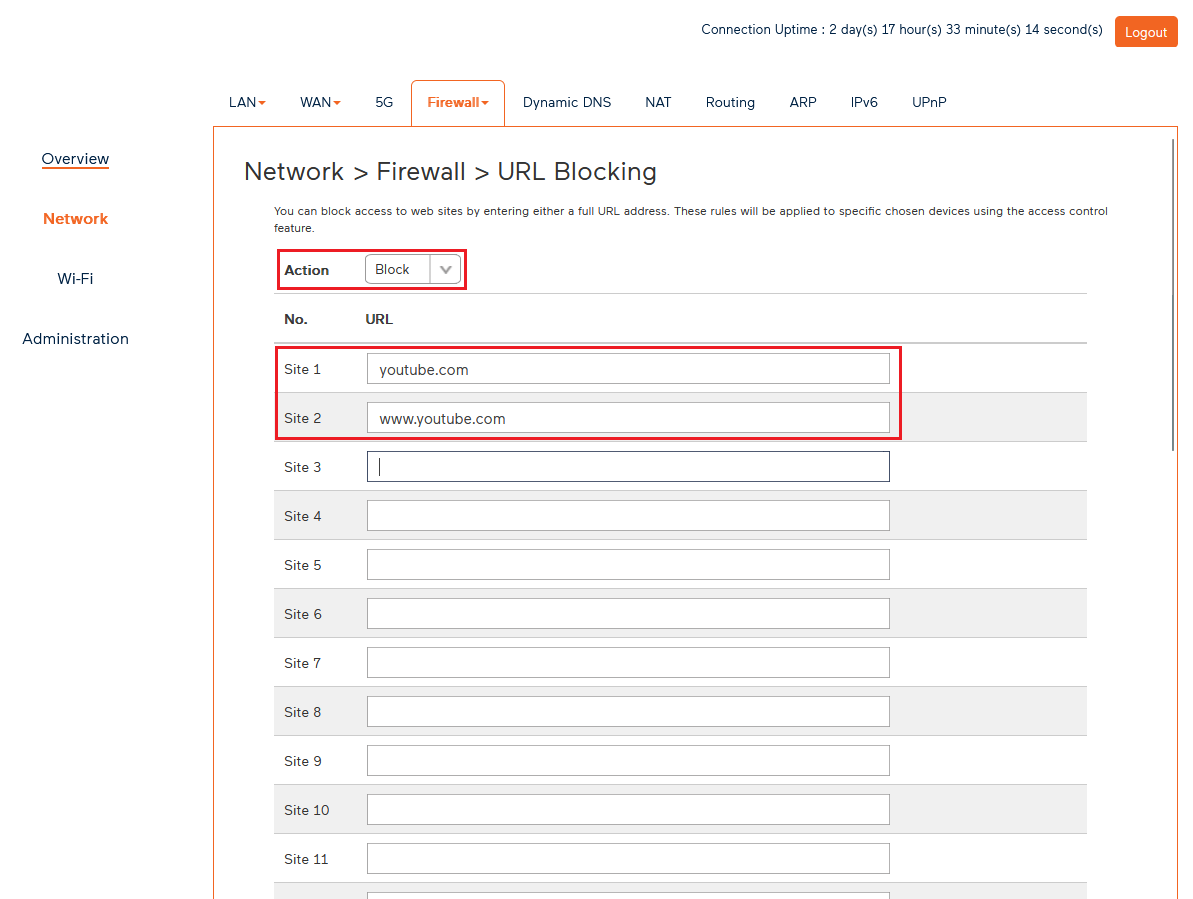
URL Blocking allows you to block access to specific websites on any devices that are connected to the Internet through your Wi-Fi Max and Wi-Fi Max 5G modems.


Please note

  • This feature isn't currently available in the My Internet Connect app. You can set it up through the modem dashboard.
  • URL blocking currently only works for links that are 36 characters or shorter. Longer URLs may not be blocked successfully. This limitation will be lifted in your first firmware update, which will increase the maximum supported URL length to 100 characters. 
  • This feature blocks websites accessed via a web browser, but may not block content accessed through mobile apps.
  • Some websites use multiple domains or subdomains. You may need to block more than one URL to fully restrict access.


Tips for Effective Blocking

  • Use simple URLs: Stick to the main domain (e.g. "facebook.com") rather than long or specific page links.
  • Test the block: After saving, try accessing the site from a browser to confirm it’s blocked.
  • Block related domains: Some services use multiple URLs (e.g. "youtube.com", "ytimg.com"). Blocking all related domains may be necessary.


How to Set Up URL Blocking

  1. Open your browser and go to: https://192.168.1.1
  2. Log in using the default Login Password on your modem's barcode sticker, or use your custom password.
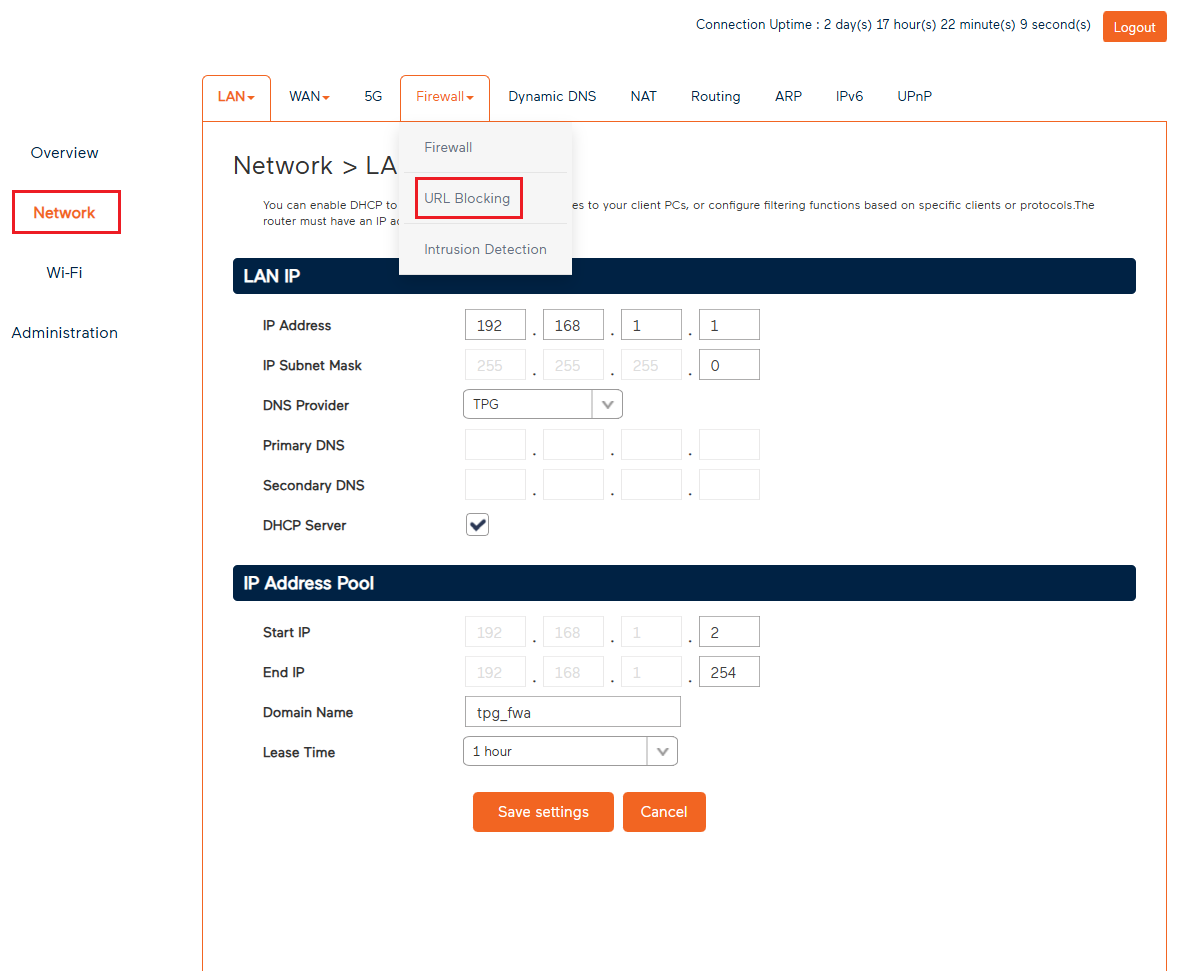
  3. In the left pane, click Network.
  4. Under the Firewall section, select URL Blocking.
    URL Blocking settings
  5. By default, the Action dropdown should be set to Block.
  6. In the URL field, enter the website address you want to block (e.g."youtube.com").
     
    We recommend also adding the www. version of the URL. 
  7. Scroll to the bottom of the page and click Save Settings to finish.
    URL Blocking example


The TPG Wi-Fi Max modem has a Mobile Backup feature, which helps keep you connected for work, streaming or browsing, even if your main internet connection goes down. 


Select one of the links below to jump to a query:


How Mobile Backup works

Up to 3 mobile devices (like smartphones or tablets) can be set up as backup internet sources. 

  1. Connection Drops: If your regular internet stops working for any reason...
  2. Mobile Hotspot Kicks In: You simply turn on the personal hotspot on one of your pre-configured mobile devices.
  3. Automatic Switch: Your modem will detect the hotspot and automatically switch to using your mobile data to keep your home or office online.
     
    If your device isn't switching to your Mobile Backup connection, try turning off Wi-Fi.


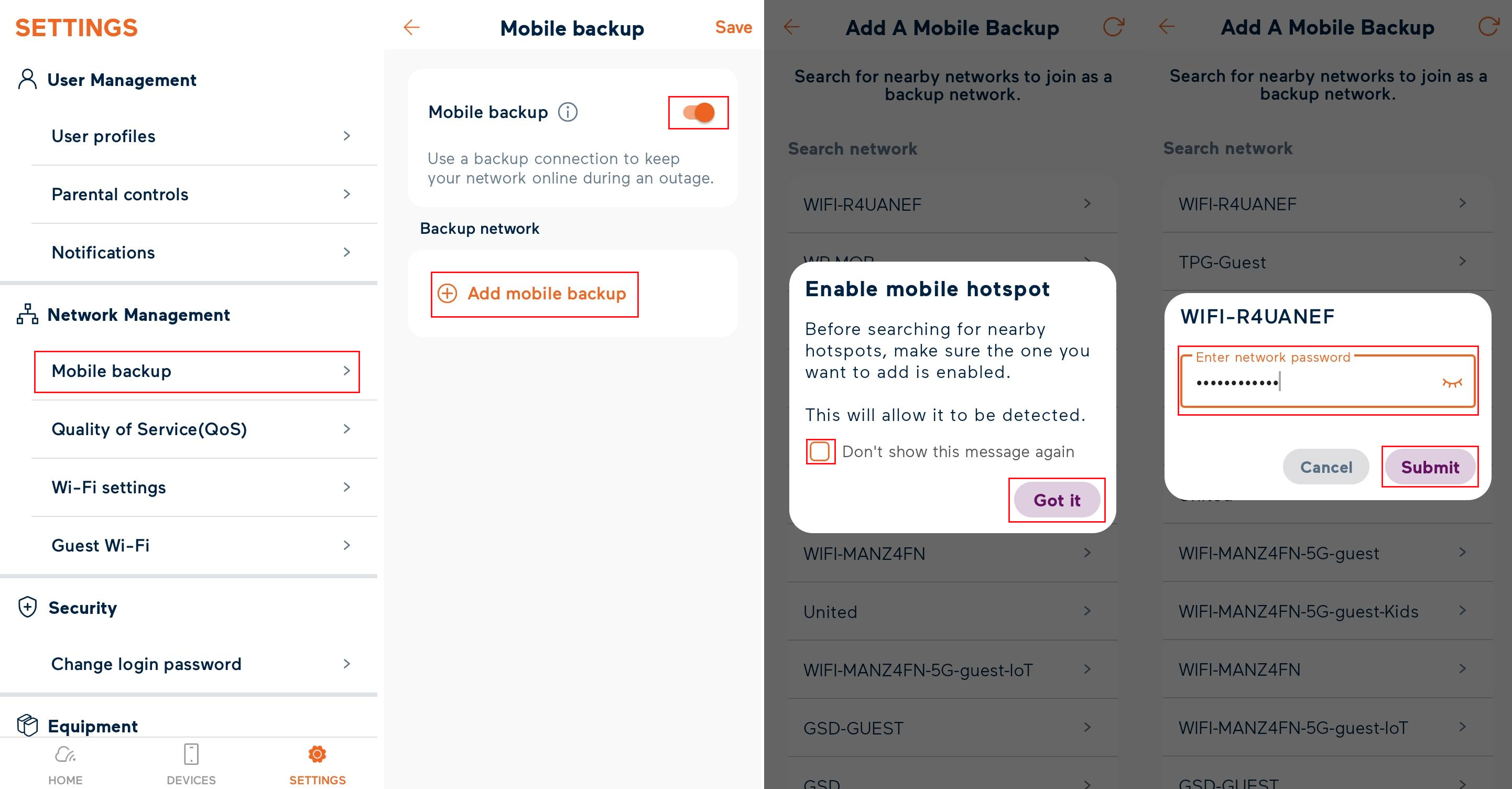
Set up Mobile Backup with the My Internet Connect App

  1. Open the My Internet Connect App and tap the settings icon.
  2. Under Network Management, select Mobile backup.
  3. Switch the Mobile Backup toggle to the on position. 
  4. Select Add mobile backup. You’ll get the option to Search For Nearby Network.
     
    You'll see a prompt asking you to enable your personal hotspot. Click Got It.
  5. Choose your personal hotspot from the list and enter the password.
  6. Hit Submit..
     
    Wi-Fi Max - Mobile Backup settings in the App


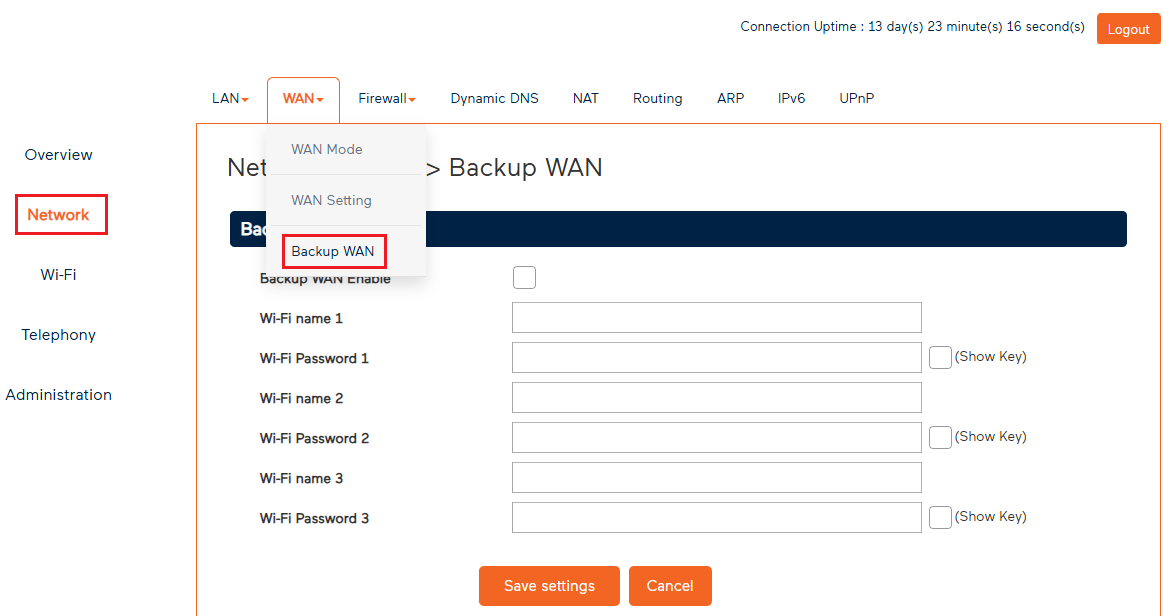
Set up Mobile Backup from the Modem Dashboard

  1. Open your web browser and go to: https://192.168.1.1
  2. Log in with the default password found on the modem's barcode sticker, or use your custom password.
  3. Select Network.
  4. Hit WAN, then select Backup WAN.
     
    Wi-Fi Max - Mobile Backup settings
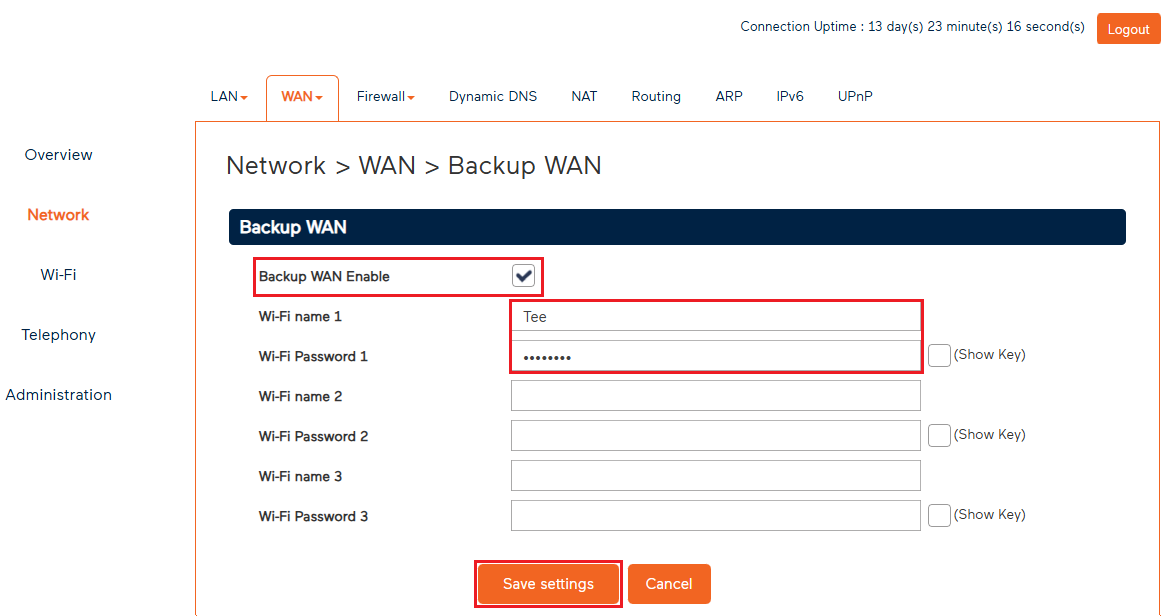
  5. Check the Backup WAN Enable tickbox.
  6. Enter your mobile Hotspot Name in the Wi-Fi name 1 field, and your mobile Hotspot Password in the Wi-Fi Password 1 field.
     
    You can set up a total of 3 devices as Mobile Backup hotspots.
  7. Hit Save Settings.
     
    Wi-Fi Max - Mobile  Wi-Fi Name and Password entry


How to turn on your personal hotspot on your mobile devices

Samsung (Android)

  1. Go to Settings.
  2. Tap Connections > Mobile Hotspot and Tethering. 
  3. Tap Mobile Hotspot and toggle it to ON.
  4. If you've haven't already done so, tap Configure to set up the hotspot's network name, password, and band.


Google (Android)

  1. Go to Settings.
  2. Tap Network & Internet > Hotspot & tethering.
  3. Tap Wi-Fi hotspot and toggle it to ON.
  4. If you've haven't already done so, you'll be prompted to set up the hotspot name and password.


iPhone (iOS)

  1. Go to Settings.
  2. Tap Personal Hotspot (or Cellular > Personal Hotspot).
  3. Toggle Allow Others to Join to ON.
  4. If you've haven't already done so, set up the Wi-Fi password.


OPPO (ColorOS)

  1. Go to Settings.
  2. Tap Connection & sharing > Personal hotspot.
  3. Toggle Personal hotspot to ON.
  4. If you've haven't already done so, tap Personal hotspot settings to configure the network name (SSID) and password.


How to turn off Wi-Fi off

If you've having trouble using to Mobile Backup, turning off Wi-Fi can stop your device trying to automatically connect to Wi-Fi.

  1. Open your device’s settings.
  2. Tap on Wi-Fi.
  3. Toggle the switch to turn Wi-Fi off.
  4. Once Wi-Fi is off, Mobile Backup will use your mobile data connection, which can often provide a more stable and reliable experience.
     
    Be sure to turn Wi-Fi back on once you're done using Mobile Backup.


Some TPG modems have Parental Control features - here's how to set them up. For more info about online safety, check out Parental safety advice.


Choose your modem:

Picture Modem
Wi-Fi Max Modem Thumbnail
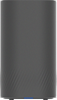
Wi-Fi Max Modem
Netcomm NL20 Modem
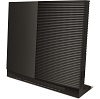
NetComm NL20 Modem
 Wi-Fi Max 5G Modem
Wi-Fi Max 5G Modem
VX420-G2H Modem
VX420-G2H Modem


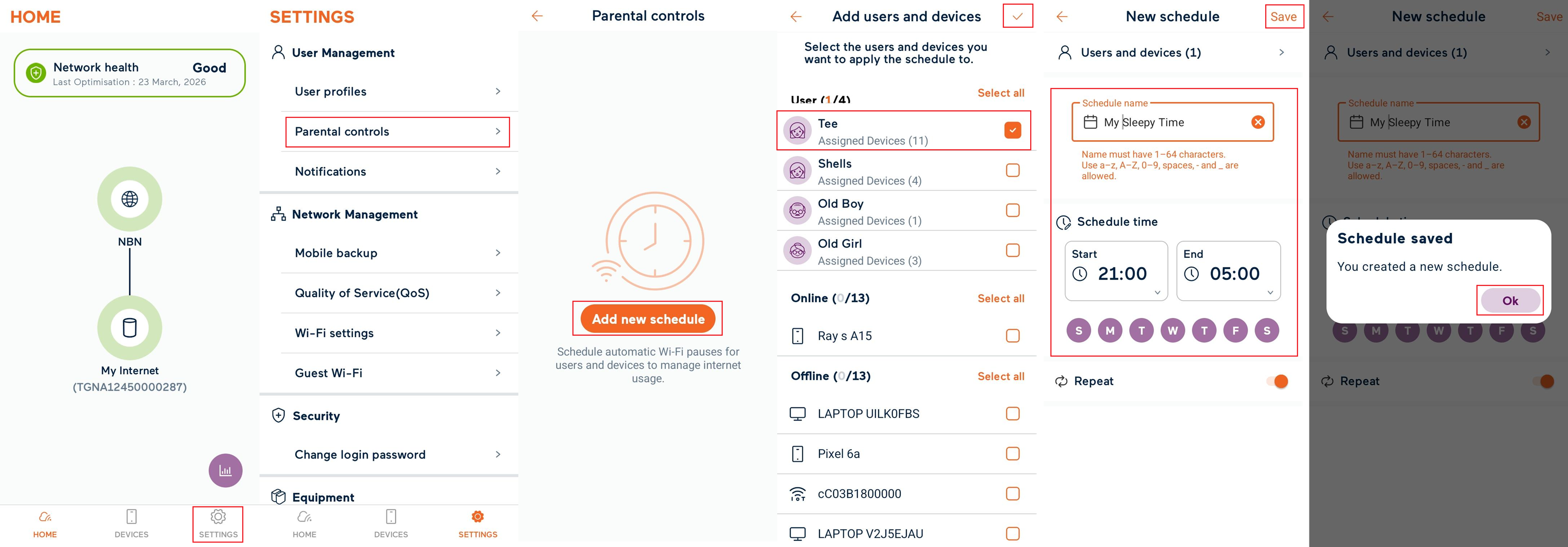
Set up Parental Controls on a Wi-Fi Max Modem

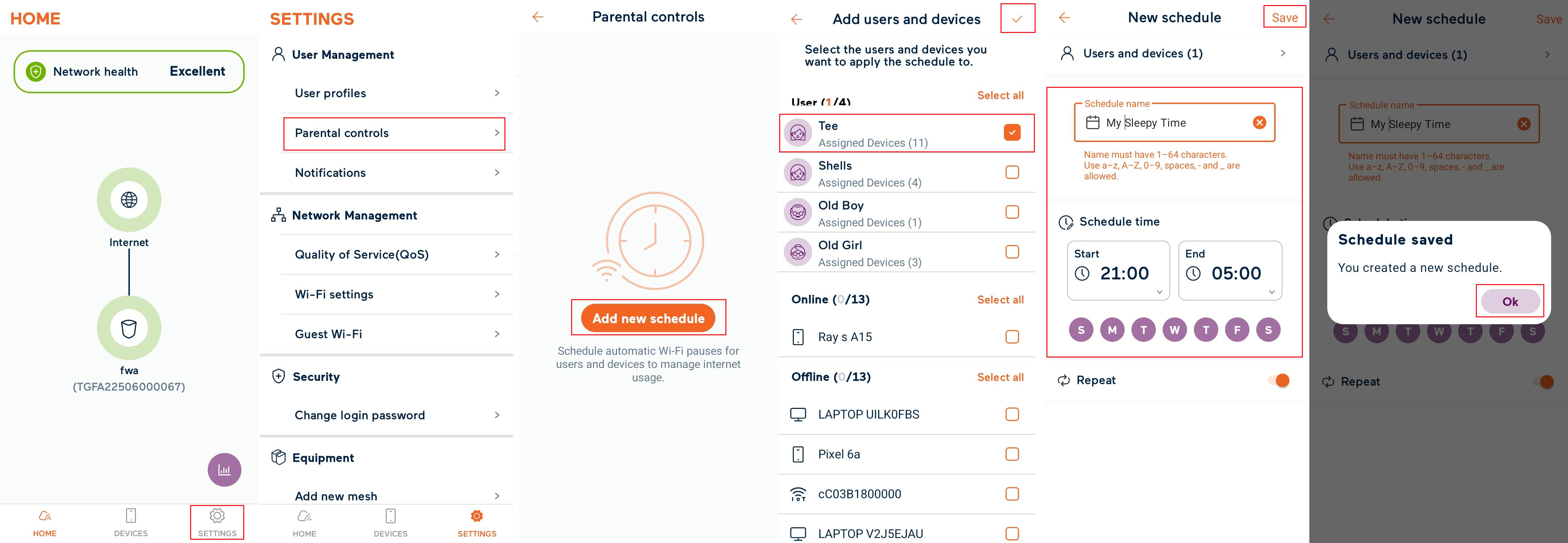
  1. Open the My Internet Connect App and go to Settings.
  2. Under User Management, select Parental controls.
  3. Select Add new schedule.
  4. Select the User(s) or Device(s) you want to control and hit the tick at the top right of the screen.
  5. Enter a Schedule name and then set the Schedule Time and Days.
  6. Tap Save at the top right of the screen then OK.
    Note: You can pause/resume a Schedule at any time by toggling the switch on/off.
     
    My Internet Connect app Parental controls


Set up Parental Controls on a NetComm NL20 Modem

  1. Open your web browser and go to: http://192.168.1.1.
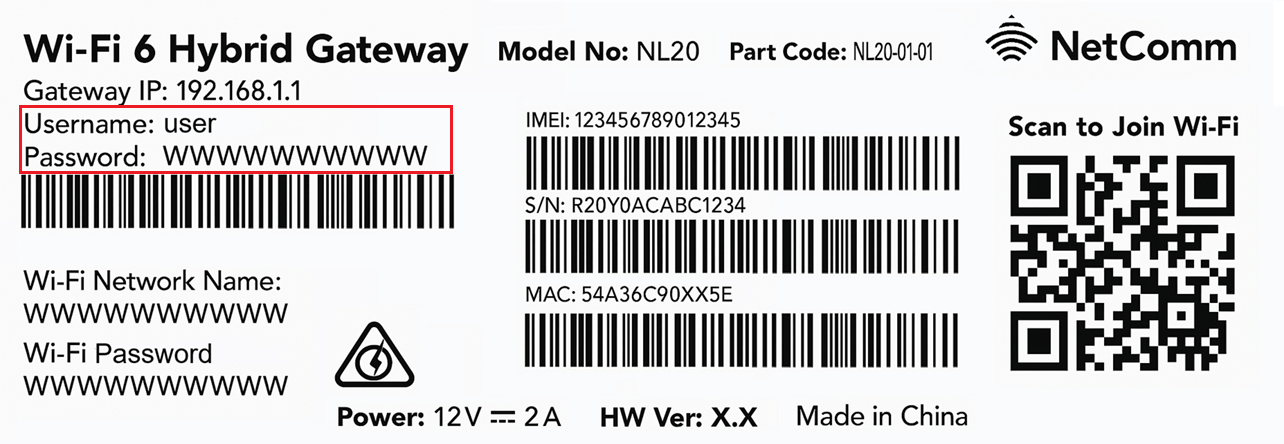
  2. Log in with the Username and Password found on the modem's barcode sticker or use your custom password.
    NetComm NL20 Modem Barcode Sticker
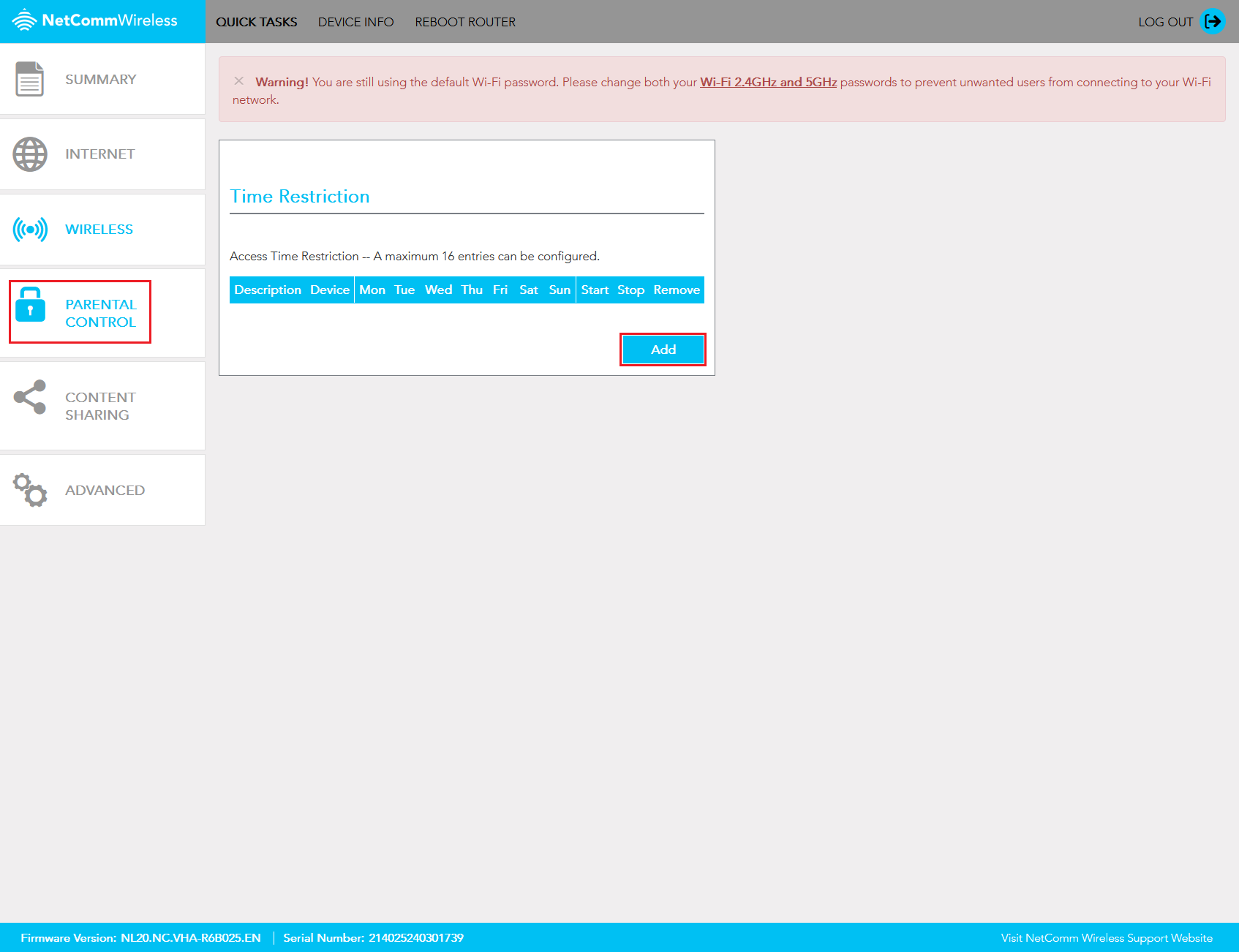
  3. In the left pane, click Parental Control.
  4. Click Add to create a Time Restriction.
    Netcomm NL20 Parental Control Settings
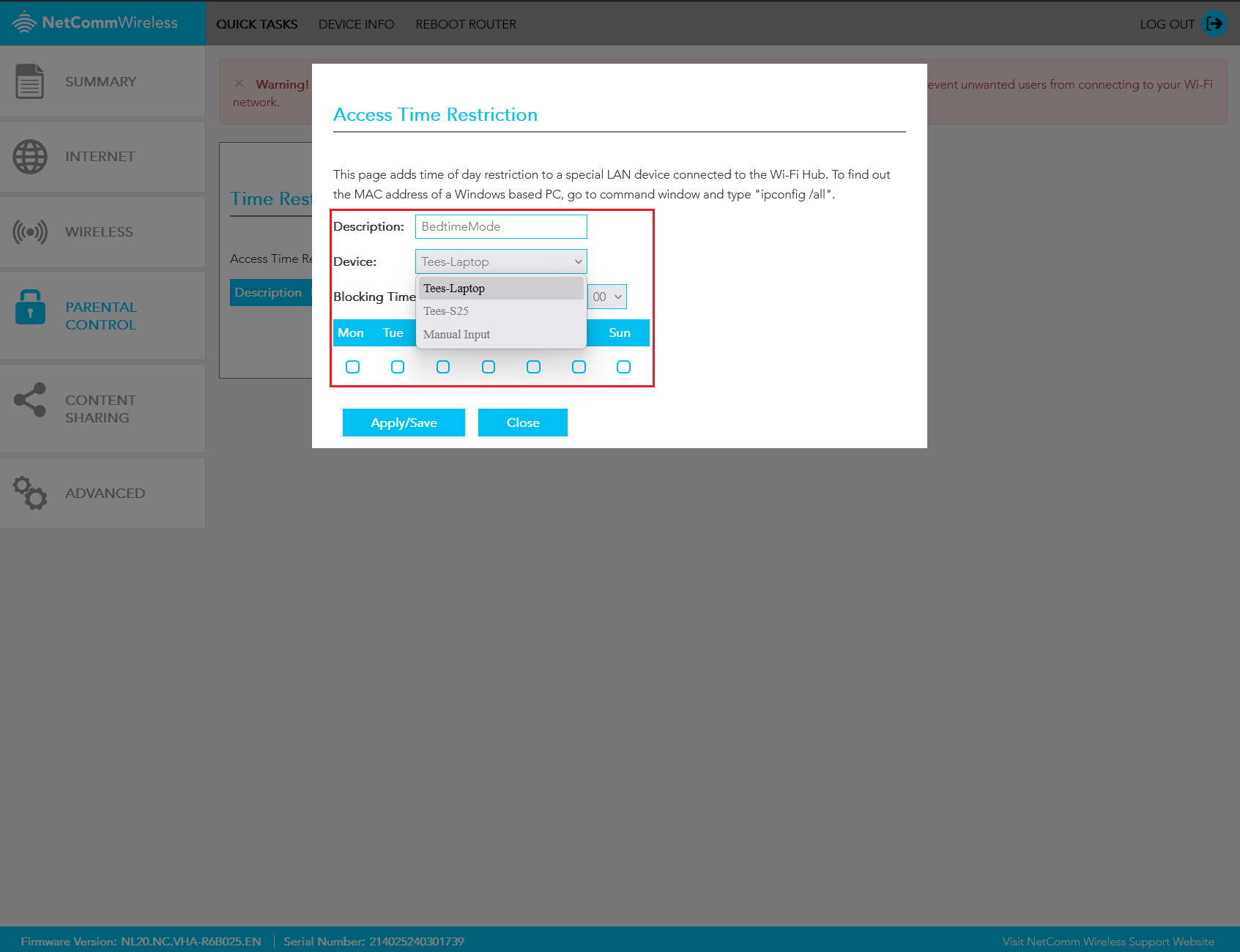
  5. In the Description field, enter rule description. 

    Note: This field may not have spaces.
  6. In the Device field, you can select any devices currently connected to the network or complete a Manual Input to add a specific MAC Address. 
    Netcomm NL20 Parental Control Settings
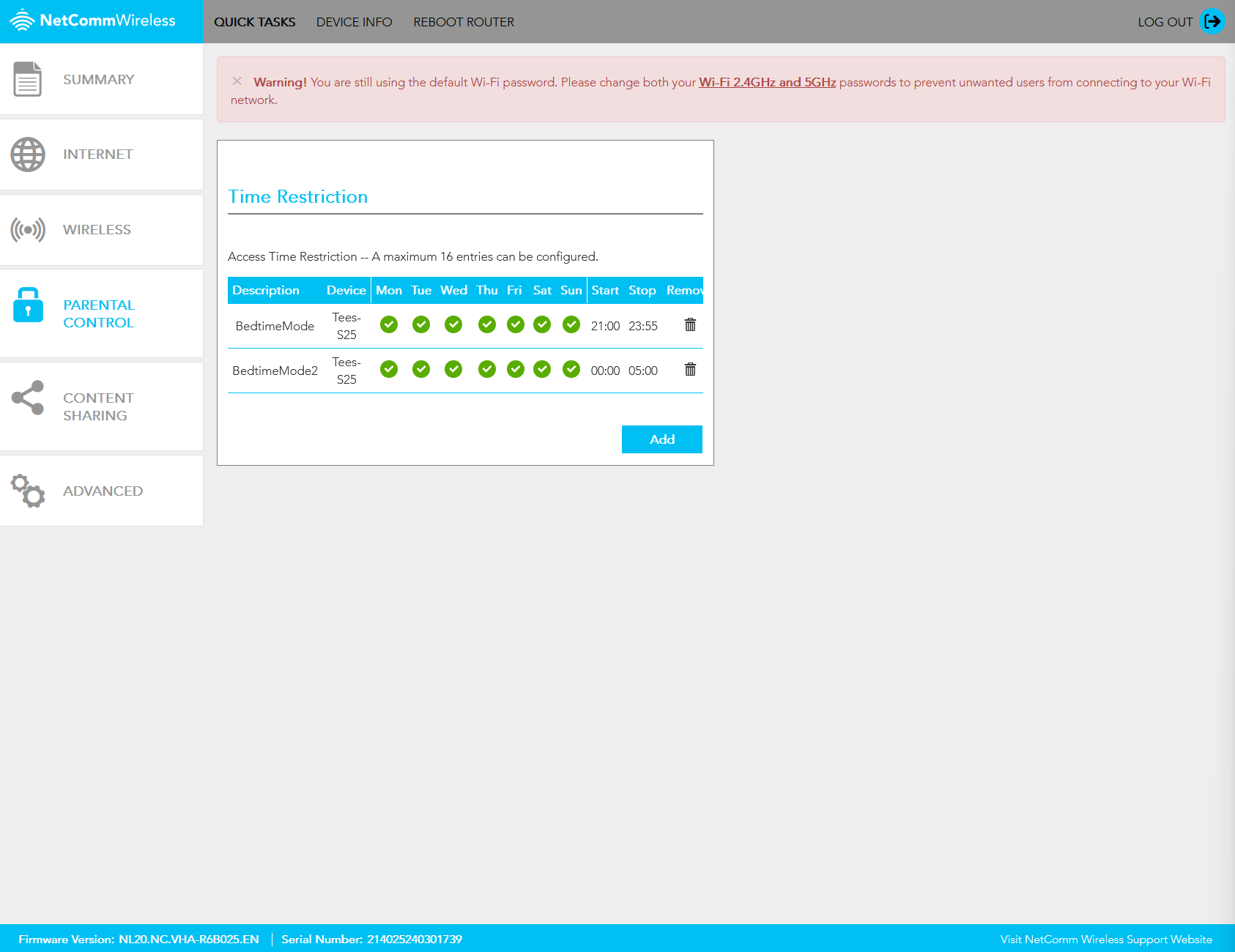
  7. Use the Blocking Time drop down fields to specify the time the restriction should be applied, then check the days the restriction should be applied.
  8. Hit Apply/Save to finish

    Tip: To block a full overnight period (e.g., 9 PM to 5 AM), you may need to create two rules.
    Netcomm NL20 Parental Control Settings


Set up Parental Controls on a Wi-Fi Max 5G Modem

You can only do this using the My Internet Connect App (Android / iOS).


  1. Open the My Internet Connect App and go to Settings.
  2. Under User Management, select Parental controls.
  3. Select Add New Schedule.
  4. Select the User(s) or Device(s) you want to control.
  5. Enter a Schedule name and then set the Schedule Time and Days.
  6. Hit Save at the top right of the screen then OK.
    Note: You can pause/resume a Schedule at any time by toggling the switch on/off.
    My Internet Connect app Parental controls


Set up Parental Controls on a VX420-G2H Modem

  1. Open your web browser and and go to: https://192.168.1.1
  2. Log in with the default password found on the on your modem's barcode sticker.. If you have a custom password, use that instead.
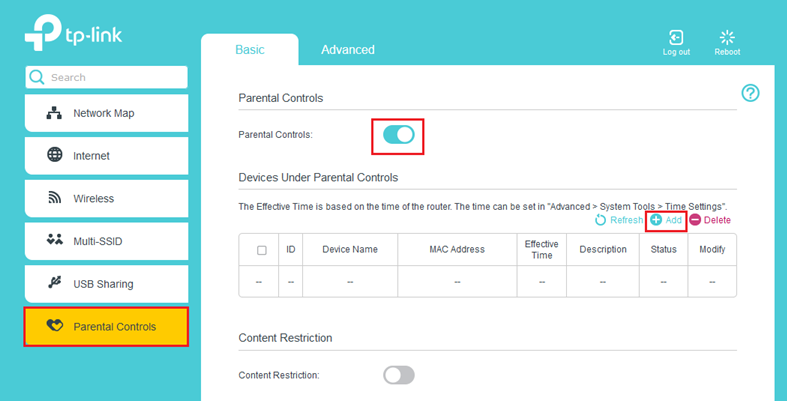
  3. Hit Parental Controls.
  4. Set the Parental Controls toggle to On, then click Add.
    • Select View Existing Devices, then under Operation, click the plus icon (+) next to the devices you want to restrict.
    • Select the clock icon beside Effective Time and click and drag to highlight the days and hours. Once done, click OK.
    • Enter a Description, then click OK.
  5. Set the Content Restriction toggle to On.
    • If you want to restrict all access or only allow a few websites, select Whitelist and click the plus icon (+) next to Add a New Keyword. Don’t add keywords if you want everything restricted.
    • If you only want to restrict a few websites, select Blacklist and click the plus icon (+) next to Add a New Keyword.
  6. Click Save.
    VX420-G2H Modem Parental Control settings


Here's what the status lights mean on your Wi-Fi Max Modem.

There's one light on the front of the modem to quickly check the modem status, and a column of 3 lights on the back of the modem. From top to bottom, they are: Bluetooth/WPS Connectivity, Internet, and Phone.


Light State and meaning
Front Off = Modem has no power.
Orange = Modem has power. This light flashes during startup.
Solid green = Modem is connected.
Flashing green = Session is down.
Solid red = Modem is unable to connect.
Flashing red = Modem has no connection to internet service provider.
Solid blue = Mobile connection via Bluetooth is active.
Flashing blue = Phone is off the hook.
Bluetooth / WPS Connectivity
Rear top
Off = No Bluetooth or WPS connection request in progress.
Solid blue = Bluetooth connection is active.
Flashing blue = Bluetooth connection in progress.
Solid green = WPS connection is active.
Flashing green = WPS connection in progress.
Flashing orange = Bluetooth or WPS connection failed.
Internet
Rear middle
Solid green = Modem is connected.
Flashing green = Session is down.
Solid red = Modem is unable to connect.
Flashing red = Modem has no connection to internet service provider.
Phone
Rear bottom
Off = No Phone service has been activated.
Solid green = Phone successfully registered.
Flashing green = Phone service initial setup in progress.
Solid blue = Phone service initial setup failed.
Flashing blue = Phone is off the hook.

Here’s how you can set up a compatible bring-your-own (BYO) modem for TPG Fibre to the Home (FTTH) on the Vision network.

Your TPG Voice phone service and included calls are not available if you use a BYO modem.


Select one of the links below to jump to a query:


Modem compatibility

To work on TPG FTTH, your modem must support PPPoE connections by Ethernet WAN.


General FTTH setup guide for any modem

All modems are different. If this advice doesn’t work for your modem, check the manufacturer’s website for a guide on how to plug in and enter the TPG settings.


  1. Find your FTTH Connection Box – this is usually installed on the inside of an exterior wall in your home, sometimes in the garage. Some older installations may be in a cabinet on an outside wall. Unplug any old modem from the Connection Box and power outlet.
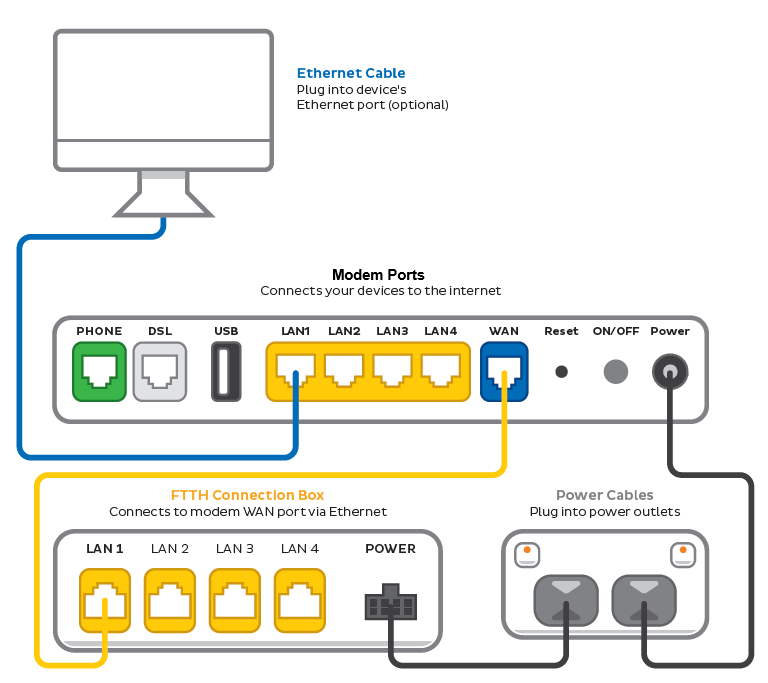
  2. Use an Ethernet cable to connect your modem's WAN or LAN/WAN port to the LAN1 or Ethernet 1 port on your Connection Box.
  3. Use the power cable to connect your modem's Power port to a power outlet, then turn it on.

    If your modem has a power button or switch, turn it on.
    FTTH modem plugin example
  4. Connect a device to your modem. You can use an Ethernet cable to connect a device to one of the LAN or Ethernet ports, or connect via WiFi.

    The default WiFi name (SSID) and password can be found on your modem’s barcode sticker.
    Example barcode sticker
  5. On your connected device, open your web browser and go to your modem’s gateway address (e.g. http://192.168.1.1). The gateway address and login details can be found on the barcode sticker.

    Modems may have a login username and password, or just a password.
    Example barcode sticker
  6. Make sure your modem has the following settings. If you’re not sure how to do this, check the manufacturer’s website for a guide.
     
    Mode/Modulation: WAN
    Connection Type: PPPoE
     
  7. You’ll need to enter your TPG username and password for the PPPoE connection. Your username is in emails from us about your TPG order, and on your TPG invoice.

    If you forgot your password, you can reset it.
  8. Save your settings and wait 5-10 minutes for your modem to connect.
  9. You should now be online. If you can’t view a website or notice a red or unlit Internet light on your modem, call us on 1300 997 274 for help.

    We’re fully trained on TPG modems, but please note that there may be limited support for your BYO modem.
    Example Internet light


If your TPG Fibre to the Home (FTTH) service on the Vision network is offline, you won’t be able to visit a website, browse, stream, or download. Email and any other services that use the internet will not work. These steps will help you identify the issue.


  1. Your service may just be affected by an outage or planned maintenance. You can check your address on Network Status page.
     
    If there is an outage or planned maintenance, the results will give you an estimated fix time.
  2. Find your FTTH modem and make sure the cables are plugged in securely and not damaged. Our setup guide will show you how to plug in.
     
    You’ll need to replace any broken or chewed cables.
  3. Find your FTTH Connection Box – this is usually installed on the inside of an exterior wall in your home, sometimes in the garage. Some older installations may be in a cabinet on an outside wall. 
  4. Turn off the Connection Box using the power button or power outlet for at least 10 seconds.
     
    If an outdoor Connection Box has no visible power button or power outlet, skip this step as a restart is not possible.
  5. Turn off the power outlet for your modem for at least 10 seconds.
  6. Turn both devices back on and wait for your modem's Internet light to come on, then see if you can visit a website.
    VX420-G2V lights - from left to right: Power, DSL, Internet, 2.4GHz, 5GHz, WAN, LAN1, LAN2, LAN3, LAN4, Phone, WPS, USB.
  7. Do you have any devices connected to your modem with an Ethernet cable? If these devices can visit a website but devices on Wi-Fi can’t, switch to troubleshooting Wi-Fi No Connection.
  8. If you can view websites on some devices but not others, even when they’re both connected the same way, you may need to fix some browser settings. Check out our guide on Browsing issues.
  9. Still can't get online? Please call us on 1300 997 274 and we’ll help you.


If your TPG Fibre to the Home (FTTH) service on the Vision network is running slowly, these steps will help you identify the issue.


  1. Your service may just be affected by planned maintenance. You can check your address on our Network Status page.

    If there is planned maintenance, the results will give you an estimated fix time.
  2. Find your FTTH Connection Box – this is usually installed on the inside of an exterior wall in your home, sometimes in the garage. Some older installations may be in a cabinet on an outside wall. 
  3. Turn off the Connection Box using the power button or power outlet for at least 10 seconds.
     
    If an outdoor Connection Box has no visible power button or power outlet, skip this step as a restart is not possible.
  4. Turn off the power outlet for your modem for at least 10 seconds.
  5. Turn both devices back on and wait for your modem's Internet light to come on, then run a speed test.
    VX420-G2V lights - from left to right: Power, DSL, Internet, 2.4GHz, 5GHz, WAN, LAN1, LAN2, LAN3, LAN4, Phone, WPS, USB.
  6. Do you have any devices connected to your modem with an Ethernet cable? If speeds on these devices are fine but devices on Wi-Fi are slow, switch to Troubleshooting Wi-Fi speed.
  7. Make sure your modem’s Ethernet cables are in good condition, with “CAT6” or “CAT5e” printed on them.
     
    Older Cat5 Ethernet cables are not recommended for FTTH services. You’ll need to replace any broken or chewed cables.
  8. Your speed may temporarily slow down if you’re running more devices or apps than your connection can handle at the same time. For example, if a device is downloading a large file or running a 4K streaming app, your speed should improve when it’s finished.

    If you need to run more devices or apps at the same time, you can change your plan in My Account or call us on 13 14 23 for support.
  9. Run a scan on your antivirus/anti-malware software. If any infections are detected, make sure they are quarantined and removed.

    Contact your software’s Customer Support if you need help.
  10. Still getting slow speeds? Please call us on 1300 997 274 and we'll help you.

Your modem will take care of the hard stuff like internet settings, but we’ll need your help to plug it in. The main cables you need will come in the box, and you can grab extra Ethernet cables from the shops if you need them.

These instructions will work for TPG Fibre to the Home (FTTH) services on the Vision network.


Choose your modem to get started:

Picture Modem
VX420-G2V Modem
VX420-G2V Modem
VX420-G2H Modem
VX420-G2H Modem
BYO Modem
Don't have a TPG modem?
See our BYO modem guide.


How to plug in your VX420-G2V Modem for TPG Fibre (FTTH)

  1. First, make sure you’ve got a message from us asking you to plug in your modem. We need to get your connection ready on our side first.
  2. Find your FTTH Connection Box – this is usually installed on the inside of an exterior wall in your home, sometimes in the garage. Some older installations may be in a cabinet on an outside wall. Unplug any old modem from the Connection Box and power outlet.
  3. Use the power cable to connect your modem's Power port to a power outlet and press your modem’s ON/OFF button.
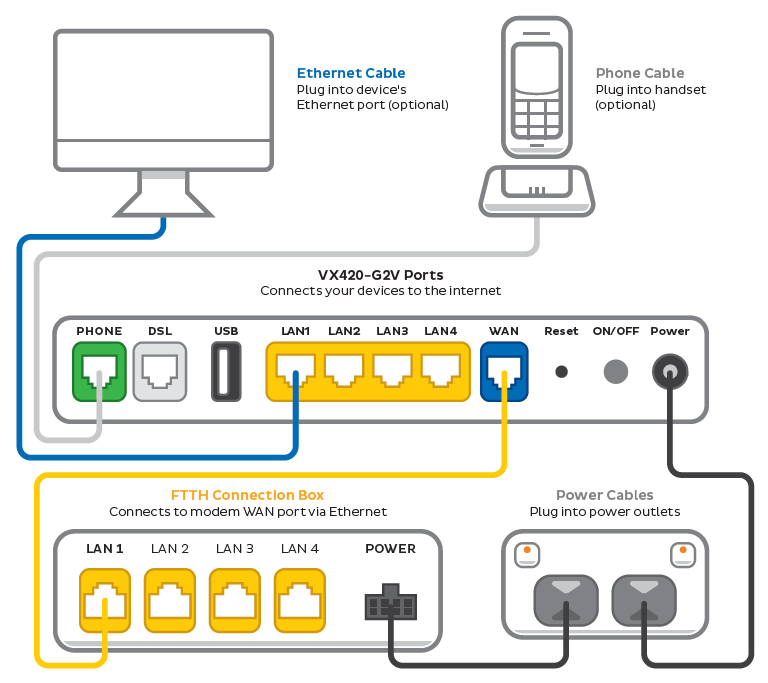
  4. Use the Ethernet cable to connect your modem's blue WAN port to your Connection Box's LAN1 or Ethernet 1 port.
  5. You'll find the default Wi-Fi name (SSID) and Wireless password/PIN on your modem's barcode sticker. If you want to change your Wi-Fi name or password, use this guide.
    VX420-G2V barcode sticker
  6. Your devices will automatically connect to the best Wi-Fi possible. If your Wi-Fi’s running slow, check out Improving Wi-Fi Signal.
  7. For online gaming or HD/4K streaming, Ethernet is better than Wi-Fi. If you have extra Ethernet cables, you can connect up to 4 devices to your modem’s yellow LAN ports.
  8. To use your TPG Voice phone service, just plug a handset into your modem’s green Phone port.
    VX420-G2V FTTH plugin - from left to right, modem ports are Phone, DSL, USB, LAN1, LAN2, LAN3, LAN4, WAN, Reset button, ON/OFF button, Power.
  9. Now it's time to enter your modem settings. On a device that's connected to your modem via Ethernet or Wi-Fi, visit http://192.168.1.1 and log in with the default username admin and default password admin.
     
    If you have custom login details, use those instead.
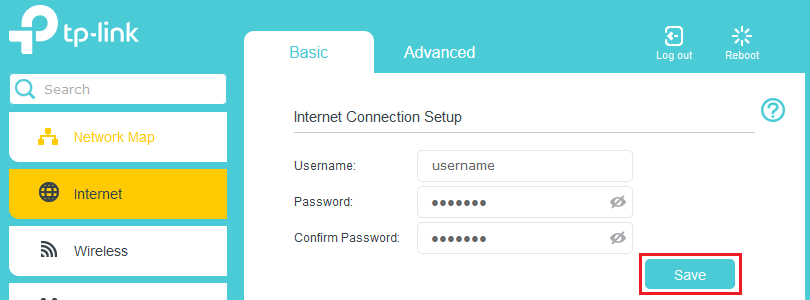
  10. Select Internet, enter the following settings and hit Save. Allow up to 5 minutes for the new settings to apply.
     
    Username: Your FTTH username (you'll find this in emails about your FTTH service)
    Password: Your FTTH password (please use our password reset tool if you've forgotten your password)
    Confirm Password: Your FTTH password 
     
    PPPoE settings
  11. Check your modem's Internet light. If it's green, you're online!

    No green light? Call us on 1300 997 274 and we can help you out.
    VX420-G2V lights - from left to right: Power, DSL, Internet, 2.4GHz, 5GHz, WAN, LAN1, LAN2, LAN3, LAN4, Phone, WPS, USB.


How to plug in your VX420-G2H Modem for TPG Fibre (FTTH)

  1. First, make sure you’ve got a message from us asking you to plug in your modem. We need to get your connection ready on our side first.
  2. Find your FTTH Connection Box – this is usually installed on the inside of an exterior wall in your home, sometimes in the garage. Some older installations may be in a cabinet on an outside wall. Unplug any old modem from the Connection Box and power outlet.
  3. Use the power cable to connect your modem's Power port to a power outlet and press your modem’s ON/OFF button.
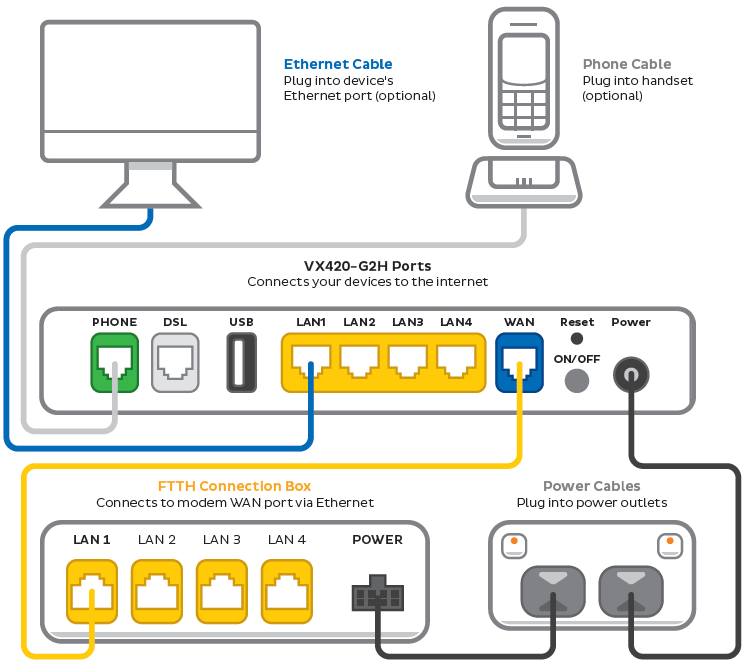
  4. Use the Ethernet cable to connect your modem's blue WAN port to your Connection Box's LAN1 or Ethernet 1 port.
  5. You'll find the default Wi-Fi name (SSID) and Wireless password/PIN on your modem's barcode sticker. If you want to change your Wi-Fi name or password, use this guide.
    VX420-G2H Barcode sticker
  6. Your devices will automatically connect to the best Wi-Fi possible. If your Wi-Fi’s running slow, check out Improving Wi-Fi Signal.
  7. For online gaming or HD/4K streaming, Ethernet is better than Wi-Fi. If you have extra Ethernet cables, you can connect up to 4 devices to your modem’s yellow LAN ports.
  8. To use your TPG Voice phone service, just plug a handset into your modem’s green Phone port.
    VX420-G2H Modem FTTH plugin - from left to right, modem ports are Phone, DSL, USB, LAN1, LAN2, LAN3, LAN4, WAN, Reset button above ON/OFF button, Power.
  9. Now it's time to enter your modem settings. On a device that's connected to your modem via Ethernet or Wi-Fi, visit http://192.168.1.1 and log in with the default username admin and default password admin.
     
    If you have custom login details, use those instead.
  10. Select Internet, enter the following settings and hit Save. Allow up to 5 minutes for the new settings to apply.
     
    Username: Your FTTH username (you'll find this in emails about your FTTH service)
    Password: Your FTTH password (please use our password reset tool if you've forgotten your password)
    Confirm Password: Your FTTH password 
     
    PPPoE settings
  11. Check your modem's Internet light. If it's green, you're online!

    No green light? Call us on 1300 997 274 and we can help you out.
    VX420-G2H Modem lights - from left to right: Power, DSL, 4G, Internet, 2.4GHz, 5GHz, WAN, LAN1, LAN2, LAN3, LAN4, Phone, WPS, USB.