Set up your 5G Home Broadband
Your modem will take care of the hard stuff like internet settings, but we’ll need your help to plug it in. The main cables you need will come in the box, and you can grab extra Ethernet cables from the shops if you need them.
Note: Your TPG 5G SIM is already inside your 5G Modem. Please don't remove it because the SIM won't work in other devices.
Please note that 5G Home Broadband is only suitable for casual online gaming. Learn more.
Choose your modem to get started:
| Picture | Modem |
|---|---|
|
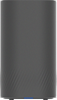
Wi-Fi Max 5G Modem |
|
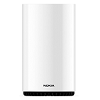
Nokia FastMile 3.2 5G Modem |
|
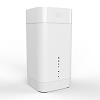
Sagemcom 5866 5G Modem |
How to plug in your Wi-Fi Max 5G Modem for 5G Home Broadband
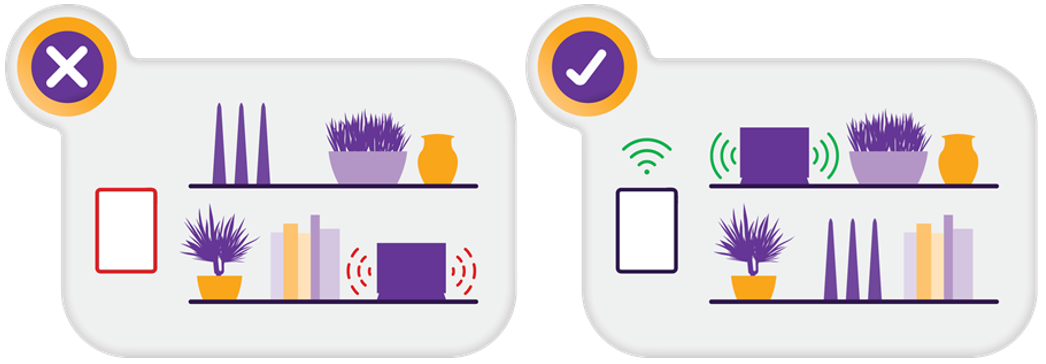
- Find a good spot for your modem
- It's best to choose a clear, open location on a shelf or table - ideally near a window.
- Don't put your modem on the floor or inside a cupboard because this will cause a weak signal.
- You can try different spots if your first spot isn’t giving you a strong signal.
- Power on your modem
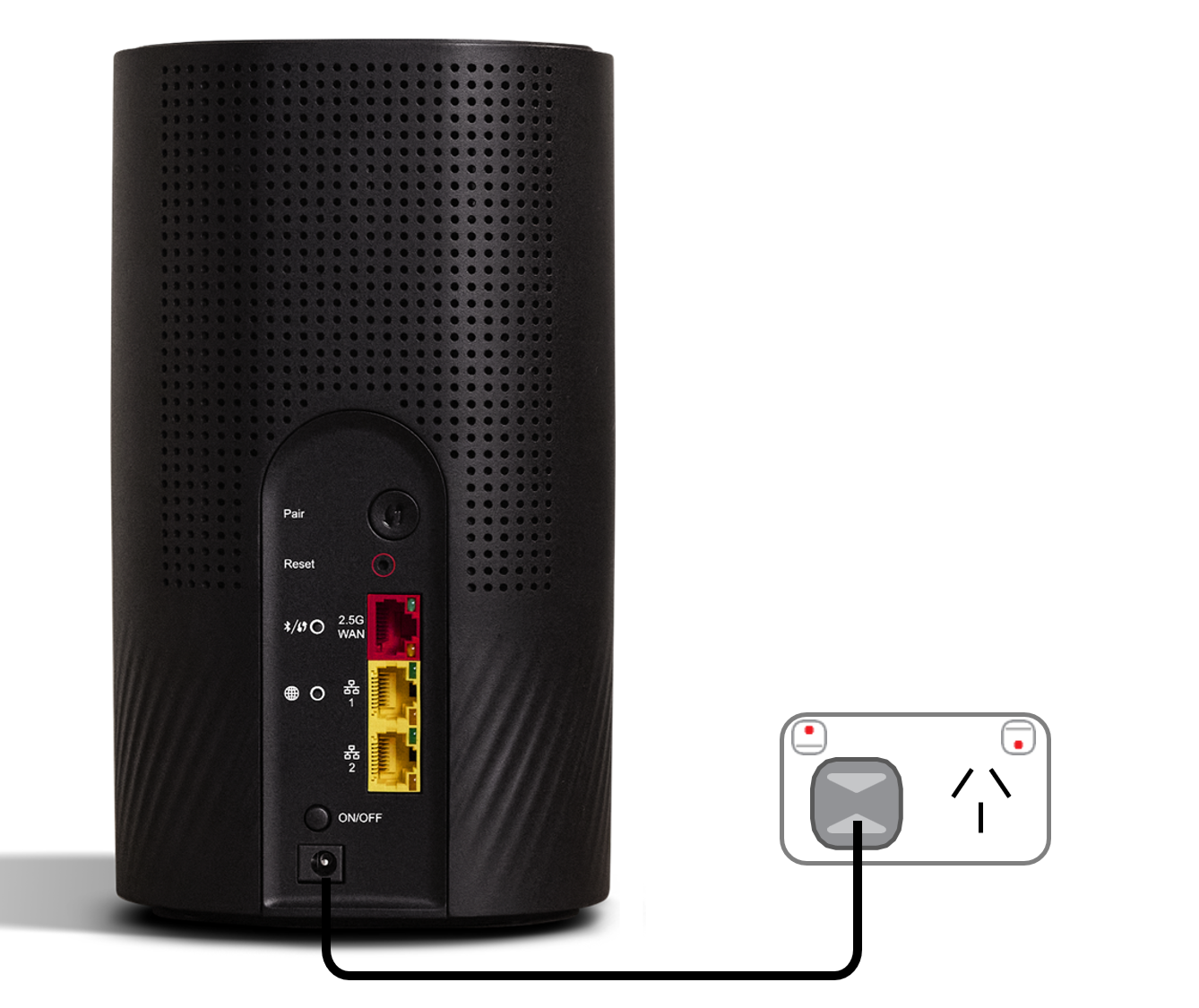
- Use the power cable to plug your modem's Power port into a power outlet.
- Press the ON/OFF button.
- Check your 5G signal
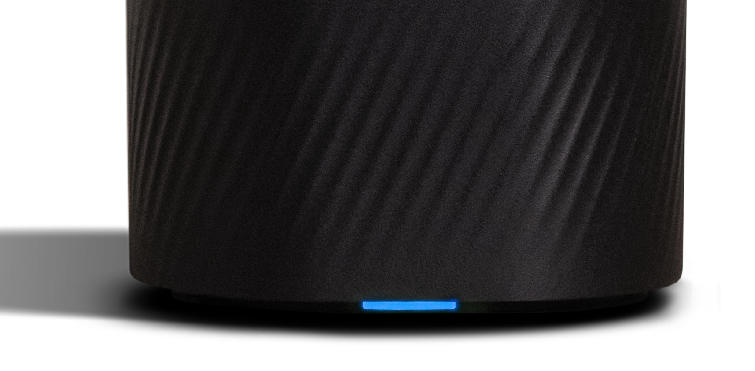
- Check the light on the front of your modem. If it's blue, you’re online with the 5G network and you can start connecting your devices.
- If the light on the front of your modem is solid orange, then you're online with the 4G network. Your modem may connect to 4G if it provides a better signal than 5G. Try moving your modem to a different spot.
- If the light on the front of your modem is red, then your modem can’t get a signal on either 5G or 4G. Try moving your modem to a different spot.
- Can’t get a blue light? Give us a call on 13 14 23 and we'll help you out.
- Connect devices via Ethernet
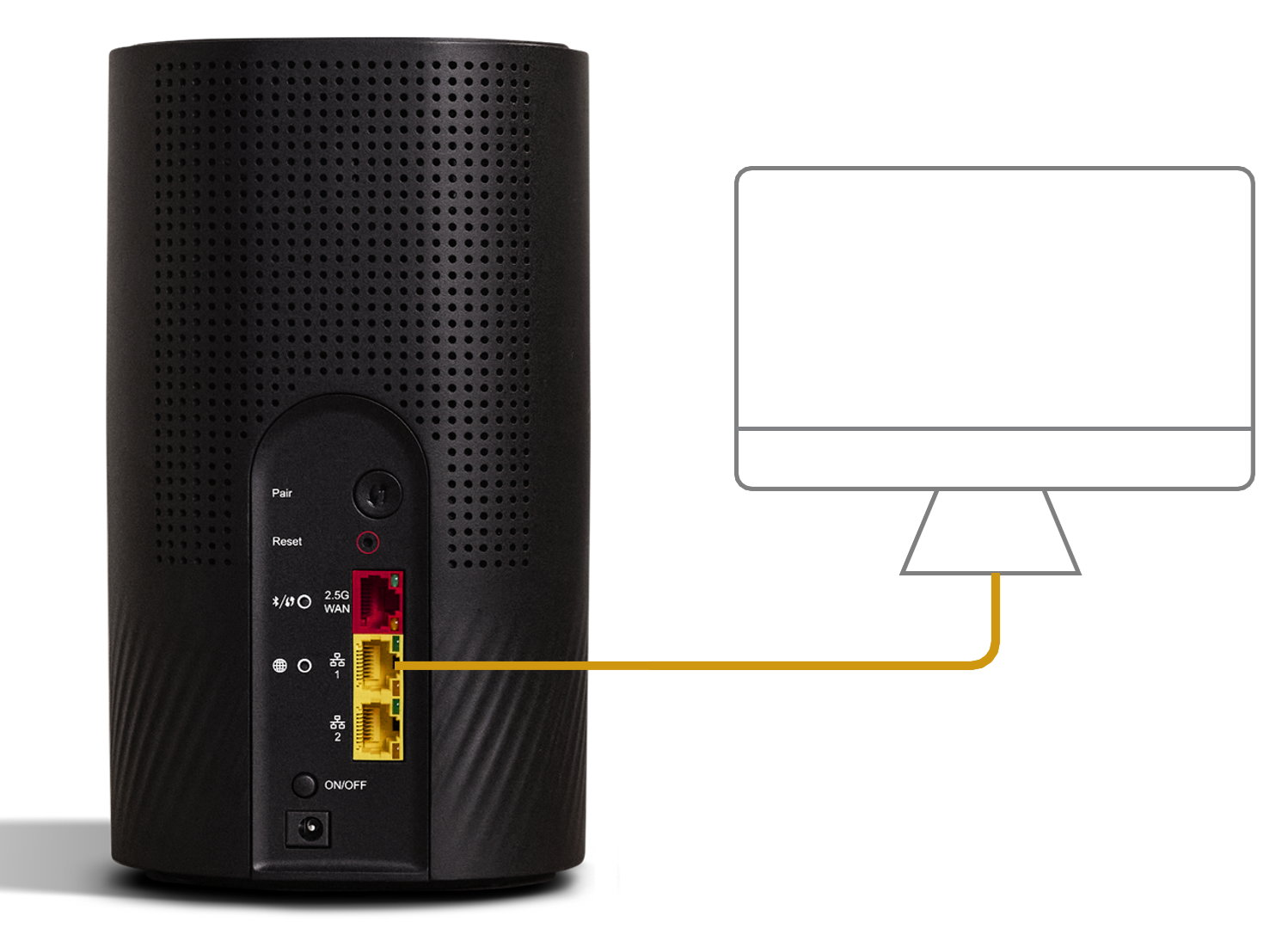
- For online gaming and HD/4K streaming, Ethernet is better than Wi-Fi. Use Ethernet for desktop PCs, gaming consoles or TVs if you can.
- You can use additional Ethernet cables to connect up to 2 devices to the yellow LAN ports.
- Need more devices connected by Ethernet? You can plug a network switch or hub into one of the LAN ports.
- You can connect more devices over Wi-Fi.
- Connect your Wi-Fi Devices
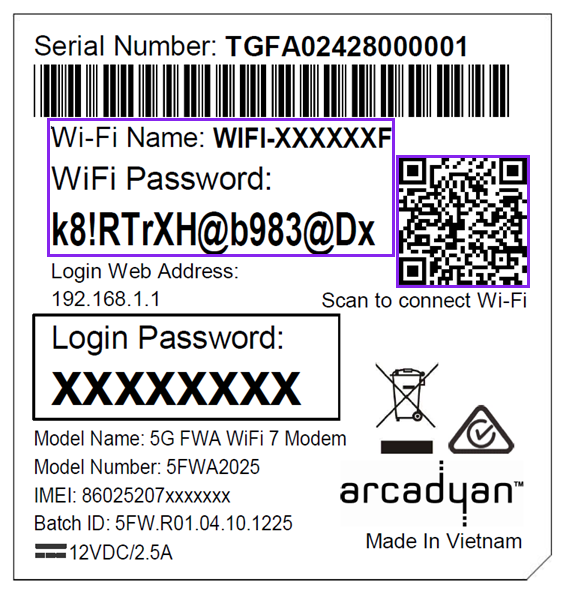
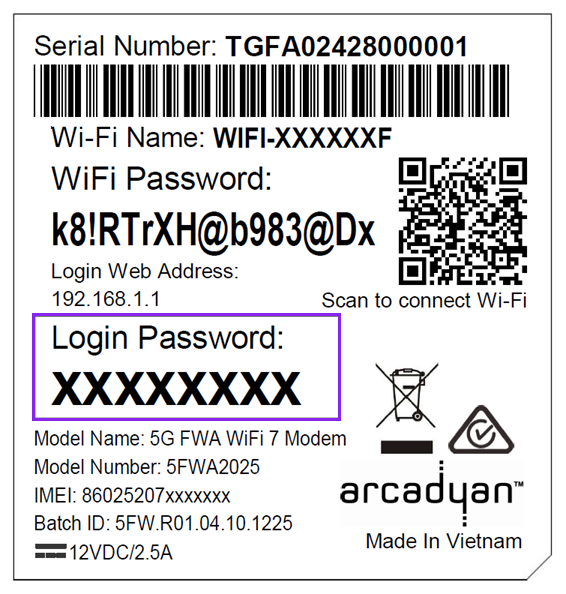
- Check the barcode sticker on the base of your modem. The default name of your Wi-Fi network is printed next to Wi-Fi Name.
- Select your Wi-Fi Name on your device, then enter the password printed below Wi-Fi Password.
- If you’re using a smartphone, you can just scan the QR code on your modem’s barcode sticker.
- Once connected, your devices will automatically use the best Wi-Fi in range, so you don’t need to manually switch between 2.4GHz and 5GHz networks.
- Download the My Internet Connect app.
It’s easy to manage your home network with the My Internet Connect app.- Make sure your device is connected to your modem’s Wi-Fi network.
- Enter the Login Password on your modem’s barcode sticker.
- Need help? Call our team using these numbers:
- 13 14 23 in Australia.
- +61 2 9007 3023 from overseas.
- National Relay Service for hearing impaired customers.
How to plug in your Nokia FastMile 3.2 5G Modem for 5G Home Broadband
Note: Your TPG 5G SIM is already inside your modem. Please don't remove it because the SIM won't work in other devices.
- Find a good spot for your modem
- It's best to choose a clear, open location on a shelf or table - ideally near a window.
- Don't put your modem on the floor or inside a cupboard because this will cause a weak signal.
- You can try different spots if your first spot isn’t giving you a strong signal.
- Power on your modem
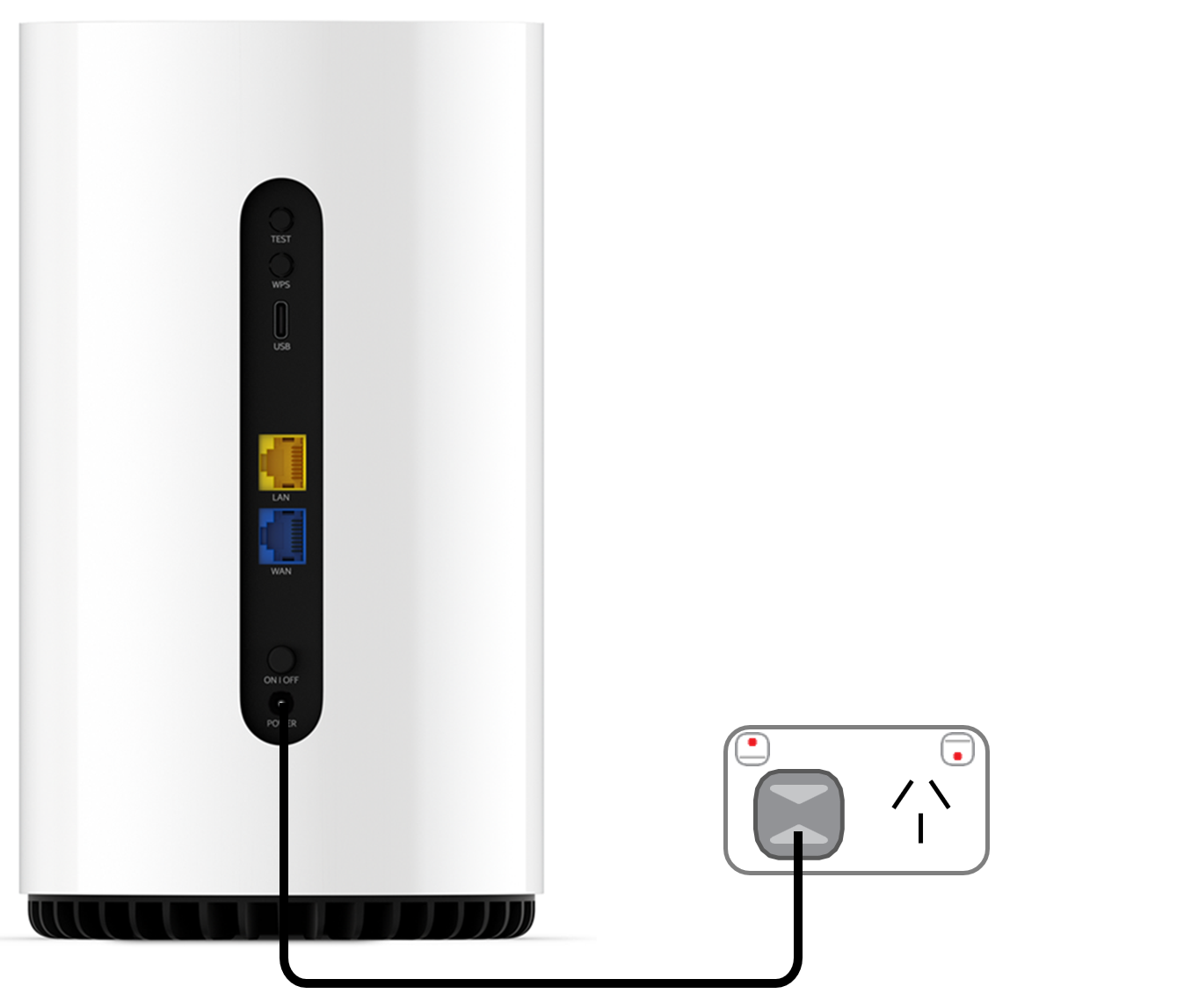
- Use the power cable to plug your modem's Power port into a power outlet.
- Press the ON/OFF button.
- Check your 5G signal
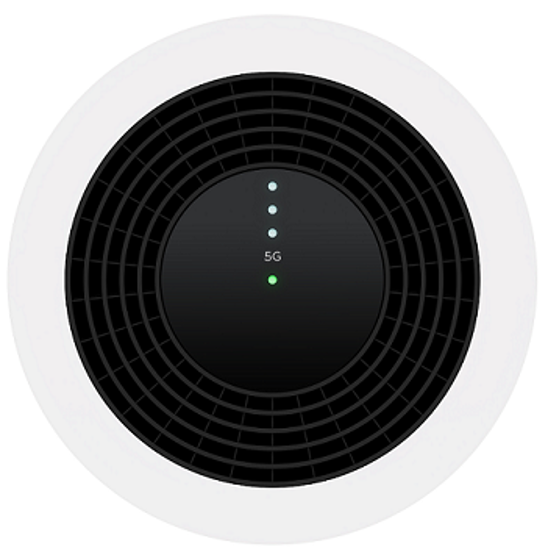
- Check the lights on the top of your modem. If the 5G light is lit, you’re online with the 5G network and you can start connecting your devices.
Note: You can press the Test button on the back of your modem at any time to test your signal. The 3 signal bars above the 5G light will light up: 3 bars is a strong signal, 2 bars is a good signal and 1 bar is a weak signal. If you only get 1 bar, try moving your modem to a different spot. - If the 5G light is off and the centre light is green, then you're online with the 4G network. Your modem may connect to 4G if it provides a better signal than 5G. Try moving your modem to a different spot.
- If the centre light is red, then your modem can’t get a signal on either 5G or 4G. Try moving your modem to a different spot.
- No 5G light or can’t get a good signal? Give us a call on 13 14 23 and we'll help you out.
- Check the lights on the top of your modem. If the 5G light is lit, you’re online with the 5G network and you can start connecting your devices.
- Connect devices via Ethernet
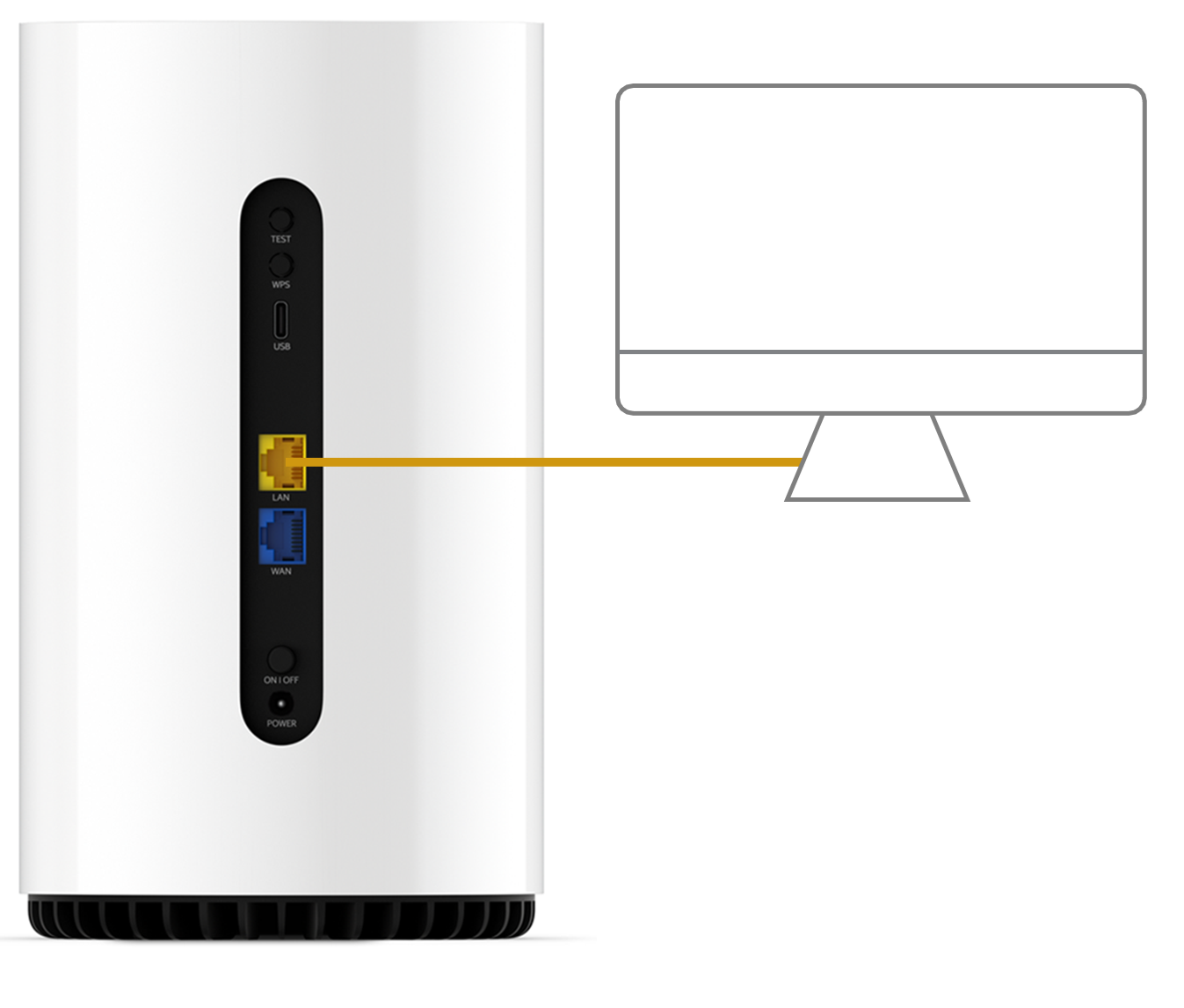
- For online gaming and HD/4K streaming, Ethernet is better than Wi-Fi. Use Ethernet for desktop PCs, gaming consoles or TVs if you can.
- You can use additional Ethernet cables to connect up to 2 devices to the yellow LAN ports.
- Need more devices connected by Ethernet? You can plug a network switch or hub into one of the LAN ports.
- You can connect more devices over Wi-Fi.
- Connect your Wi-Fi devices
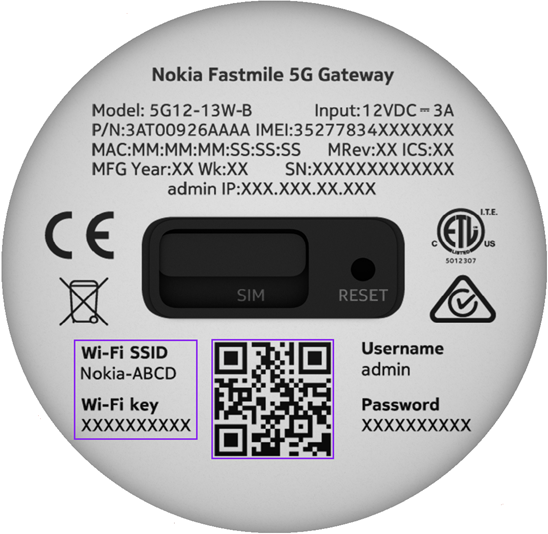
- Check the barcode sticker on the base of your modem. The default name of your Wi-Fi network is printed below Wi-Fi SSID.
- Select your Wi-Fi Name on your device, then enter the password printed below Wi-Fi Key.
- If you’re using a smartphone, you can just scan the QR code on your modem’s barcode sticker.
- Once connected, your devices will automatically use the best Wi-Fi in range, so you don’t need to manually switch between 2.4GHz and 5GHz networks.
- Need help? Call our team using these numbers:
- 13 14 23 in Australia.
- +61 2 9007 3023 from overseas.
- National Relay Service for hearing impaired customers.
How to plug in your Sagemcomm 5866 5G Modem for 5G Home Broadband
- Find a good spot for your 5G Modem. It's best to choose a clear, open location on a shelf or table - ideally near a window.
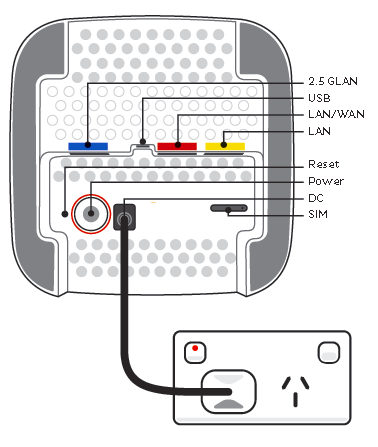
You can try different spots if your first spot isn’t giving you a strong signal. Don't put your modem on the floor or inside a cupboard because this will cause a weak signal. - Use the power cable to plug your modem's Power port into a power outlet and press the Power button on the base.
-
Leave your modem alone for 3-5 minutes while it runs through its automatic setup.
-
Check the Signal lights on your modem. If you have 3-4 bars, you’re online with a good signal and you can start connecting your devices.
-
If the Signal lights are off or have low bars, try moving your modem to a different spot.
Can't get a signal? Give us a call on 13 14 23 and we'll help you out.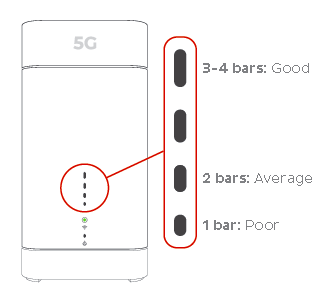
-
There are 3 ways to connect your devices to the Wi-Fi:
- A) Use the Wi-Fi Network name and Password on your modem's barcode sticker.
- B) You can also connect phones by scanning the Wi-Fi QR code on your modem's barcode sticker.
- C) Turn on Wi-Fi Protected Setup (WPS) on your device then press your modem's WPS button.
If you want to change your Wi-Fi name or password, use this guide.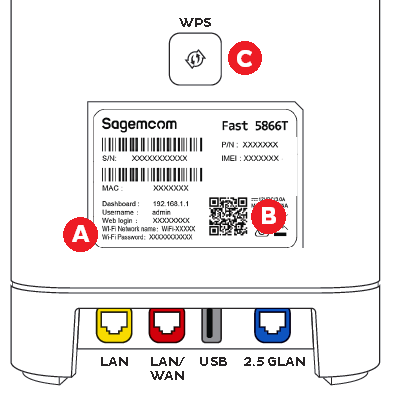
- Your devices will automatically connect to the best Wi-Fi possible. If your Wi-Fi’s running slow, check out Improving Wi-Fi Signal.
- For online gaming or HD/4K streaming, Ethernet is better than Wi-Fi. If you have extra Ethernet cables, you can connect up to 3 devices to your modem’s LAN ports.
- Once your devices are connected, you're good to go.